

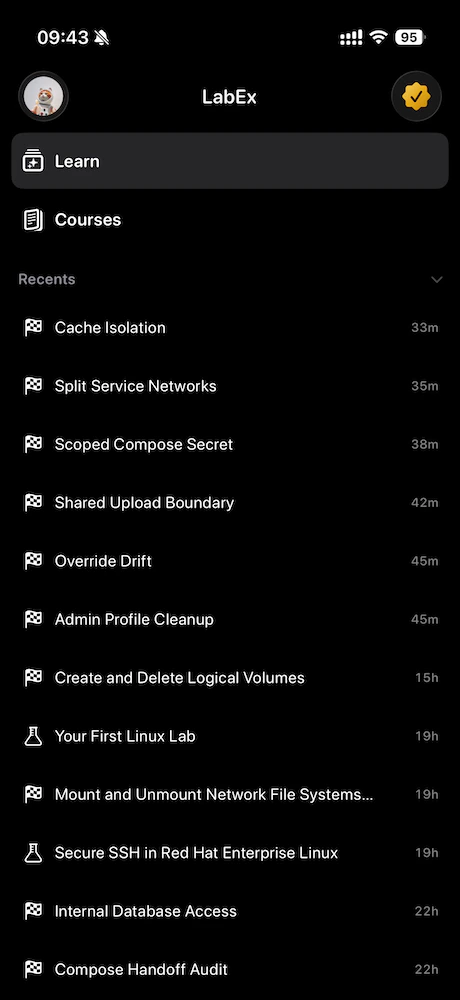
Sidebar: Learning and Courses
When you are signed in, the app uses a sidebar (or split view on iPhone) with two main areas:-
Learning
Your current lab experience: steps, chat, checks, and entry to the VM when needed. -
Courses
The full course catalog: paths, Continue Learning, and pagination. Pick a course, open its lab list, then tap a lab to start learning.
iPhone: profile and LabEx Pro
On iPhone, the sidebar toolbar includes:-
Profile (avatar)
Opens your profile in a sheet. From here you can review your account and sign out. -
LabEx Pro / Upgrade
Opens pricing in a sheet.
Mac: account and pricing
On Mac, use the account row at the bottom of the sidebar for your profile. Upgrade / Pro opens the pricing window. Same account as on the web and iPhone.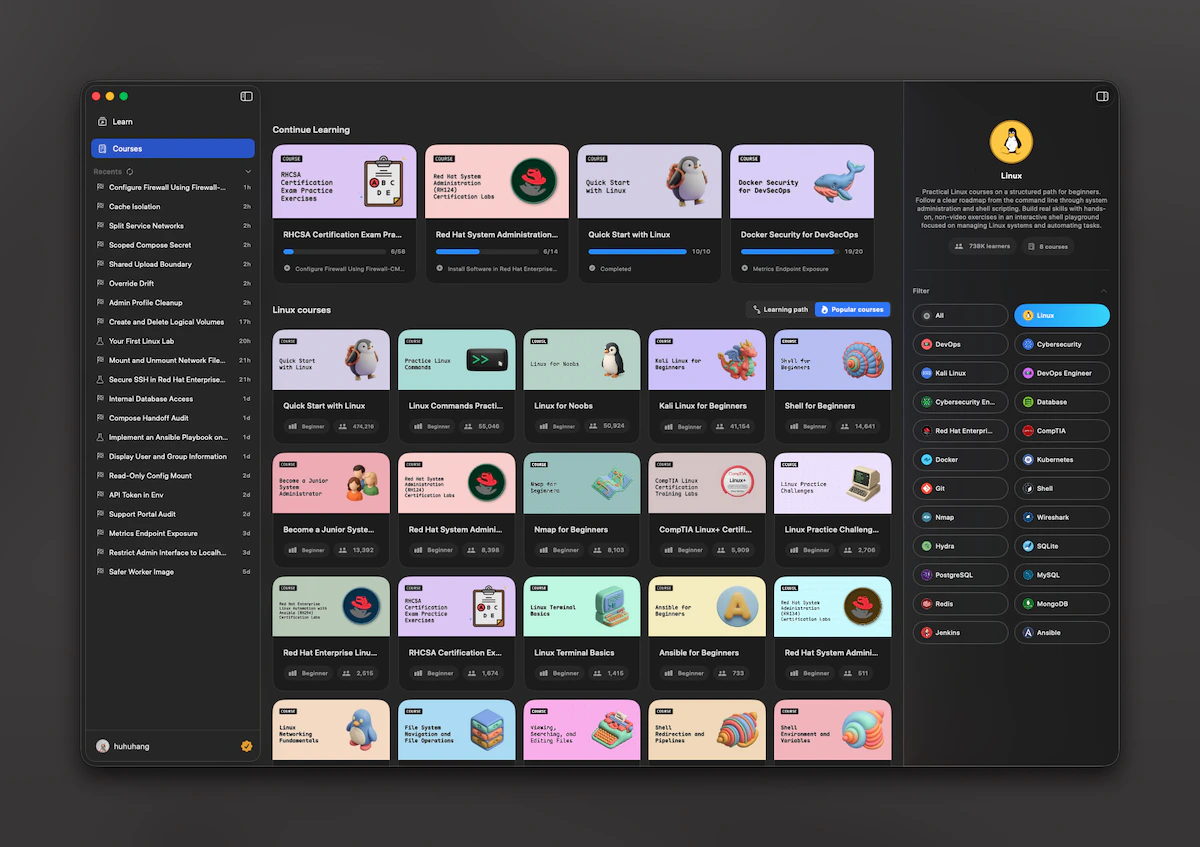
Recent labs
Under the main items, Recent lists labs you opened recently (from your LabEx timeline). Tap an item to jump back to that lab in Learning. You can refresh the list and collapse the section to save space.Learning screen: the main workflow
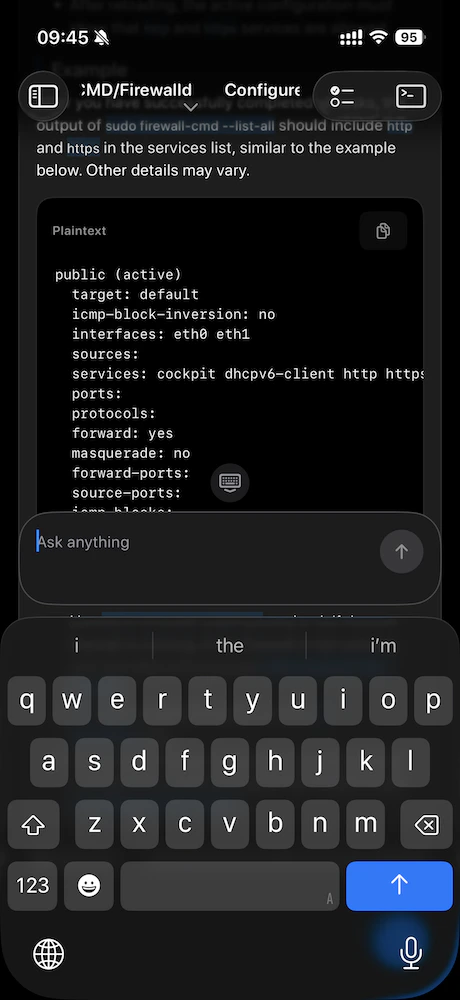
The learning screen is the center of the app. Typical flow:- Read the current step in the timeline.
- Use Labby in the composer: type a message or use shortcuts the lab provides.
- Use the primary button at the bottom for the current action, such as Continue, Complete, Re-check, or Skip, depending on the step.
Suggested questions
On middle steps, the app may show suggested questions. Tap one to send it and keep moving. The first and last step do not show these suggestions.Solution, check, and feedback
-
Solution
When available, opening the solution adds an assistant-style message into the same timeline. It stays there unless you remove it after a failure or explicit action. -
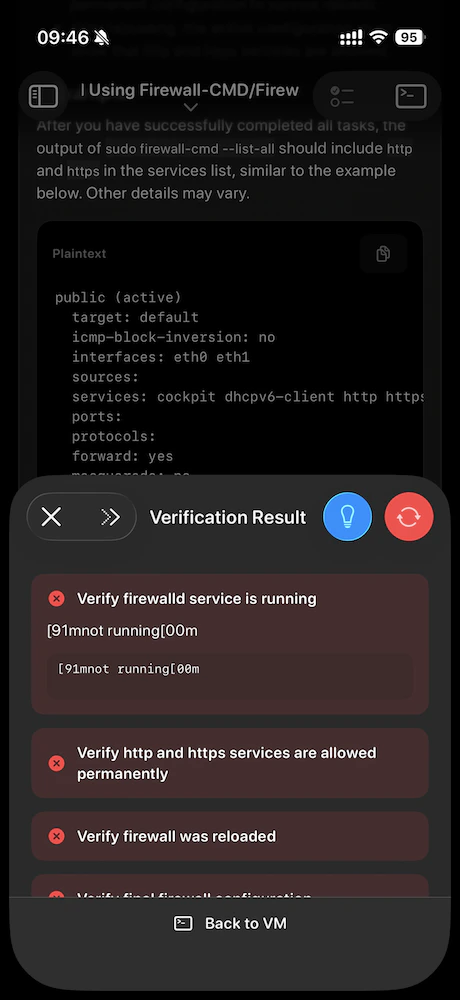
Check
Validation steps open a result panel so you see pass or fail clearly. If validation fails, the primary button can offer re-check. -
Feedback
On the last step, after you complete the flow, you may submit feedback in a sheet. After you send it, the app may move you to a next lab, a next course, or close the flow if nothing follows.
Course outline and switching labs
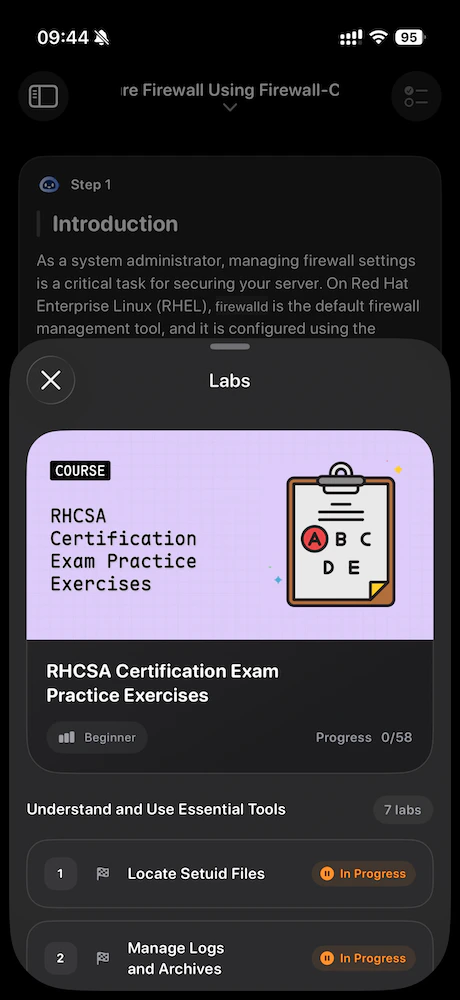
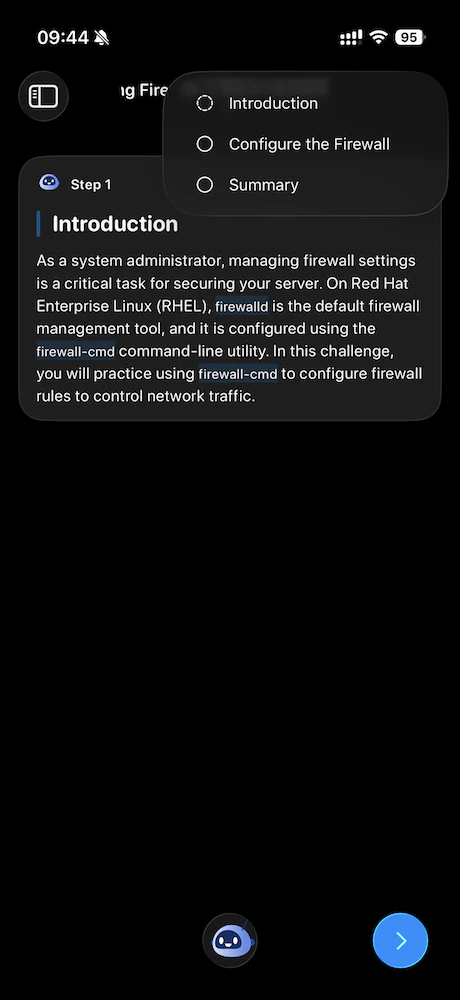
Use the title in the learning top bar to open the Labs sheet: course cover, grouped labs, progress, sometimes a next course link, and status such as In progress.- Switching to another lab in the same course updates the learning screen in place (no extra navigation stack).
Course catalog behavior
In Courses:- Continue Learning appears at the top when you have eligible in-progress courses.
- Paths let you filter content. The app only shows paths that LabEx tags for iOS (Mac uses the same rule so both apps match).
- When a path is selected, you can switch between path courses and popular courses filtered by that path (same idea on iPhone and Mac).