

When the VM starts
- Use the VM entry from the learning UI when you need the terminal.
- On the first step, the primary Continue button may also start the VM if the lab still needs an environment and you do not already have a usable session for this lab.
iPhone: VM sheet
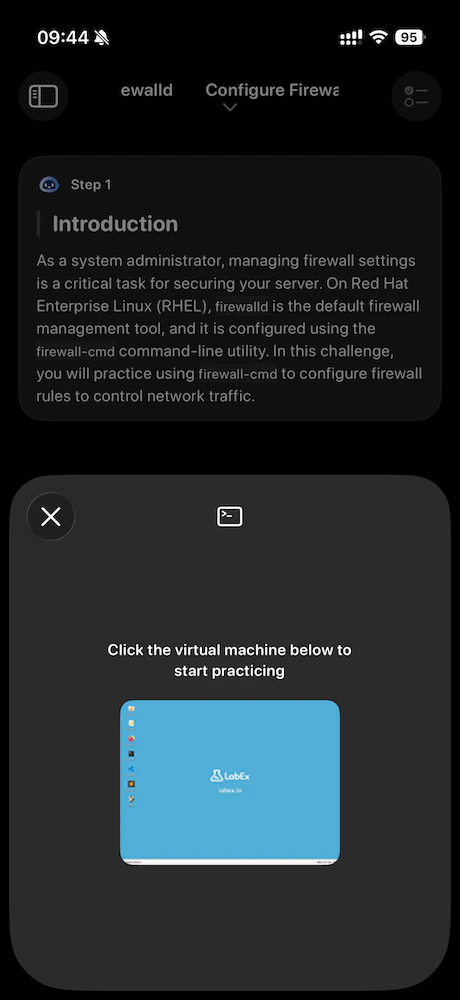
On iPhone, the VM opens as a sheet you drag between medium and large heights.- Idle
You see a short explanation and Start VM.
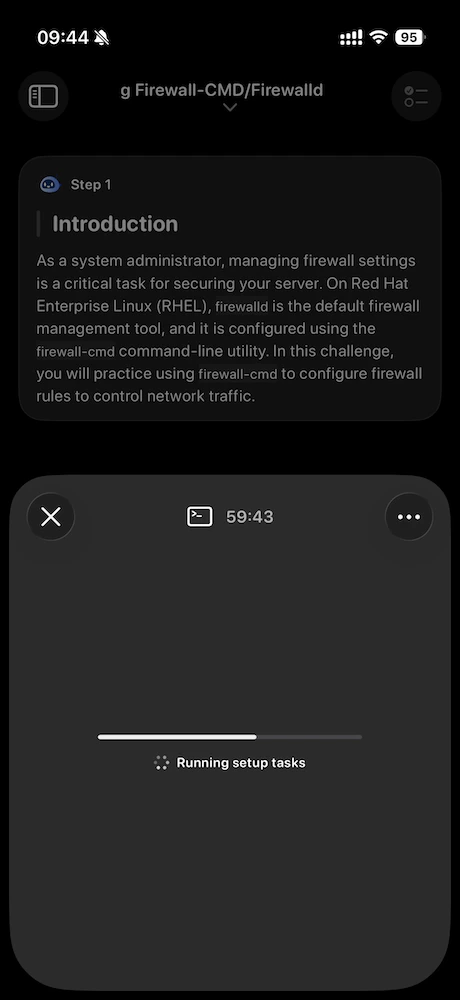
- Running
You get quick actions (for example paste and clear terminal) and a settings area for interfaces, stop, back to terminal, and exposed ports.
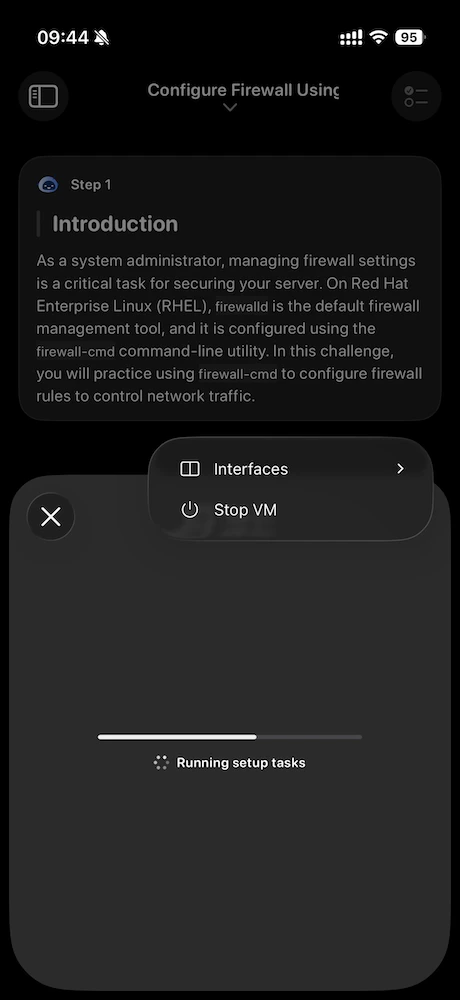
clear command in the session; it does not erase your device clipboard.
Mac: workspace and sidebar
On Mac, the terminal lives in the learning workspace, not as the only full-screen sheet. When the VM is running, Learning in the sidebar lists terminals and exposed ports in one flat list. Use the + menu next to Learning to add a terminal or add an exposed port (you type the port number in a small form). Select a row to switch what the embedded browser shows. Return to terminal jumps back to your tty session.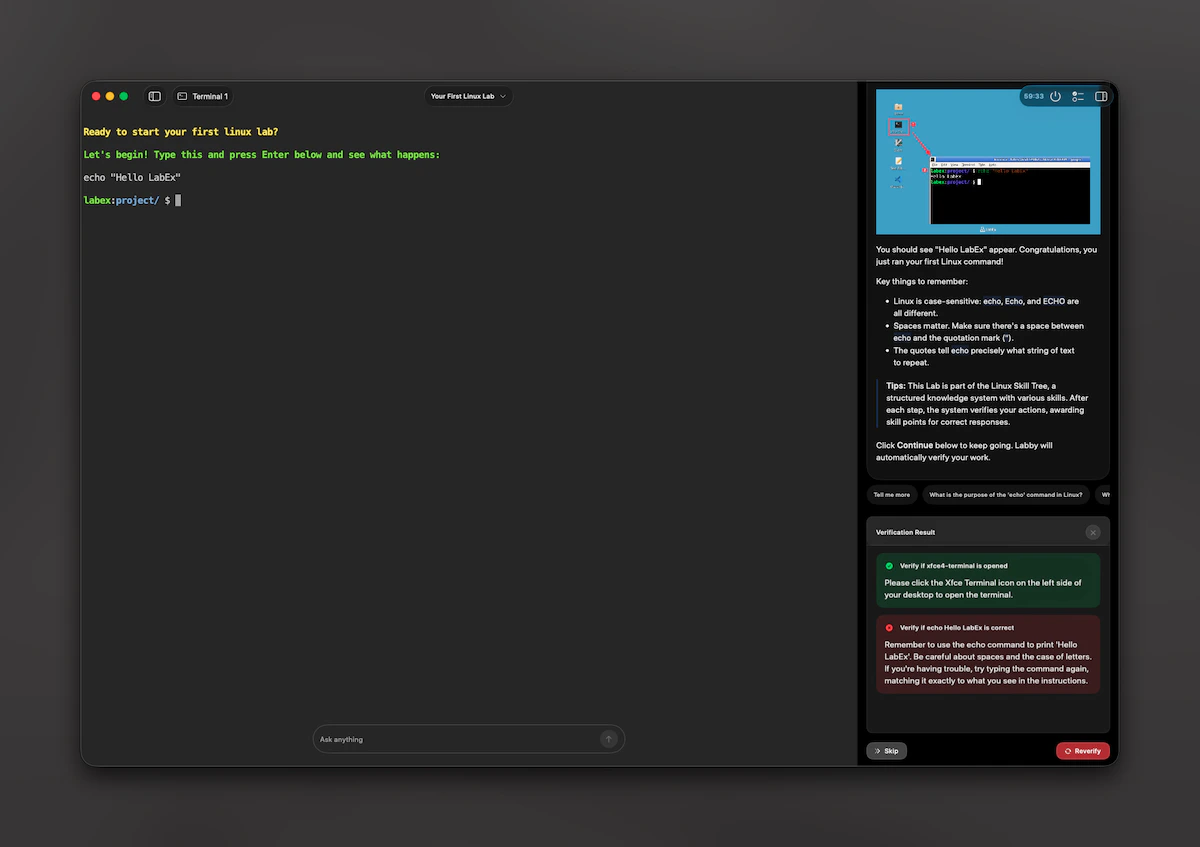
Multiple terminals and ports
Labs can use more than one terminal. The app assigns reserved high ports for web terminals and can forward extra ports you choose.- You can add another terminal until you reach the limit.
- You can close a terminal you no longer need, except the last one, which must stay open.
Session time and extend (Pro)
VMs expire after a scheduled time. The app shows remaining time and may prompt you when time is low.- LabEx Pro users may see an option to extend the session when the app enters a short final window before expiry.
- Free users see guidance that points to pricing instead.
Stop and conflicts
Stop VM ends the remote session and clears local terminal state. If a VM is already running for another lab, starting a new one can conflict. The app explains the situation and lets you keep the old lab or replace it with the new one. If you replace, the old VM is removed first. If you hit a temporary VM quota limit, the app opens pricing so you can review Pro options.Paste and shortcuts
Toolbar actions can paste into the terminal and send common keys. Some paste helpers treat paths differently (for example, they may send Enter so a command runs). Plain paste from the toolbar does not auto-send Enter.If something looks wrong
- Switching labs clears old terminal URLs so you never stay attached to the wrong lab by mistake.
- Stopping, errors, or expiry reset the VM UI to an idle state until you start again.