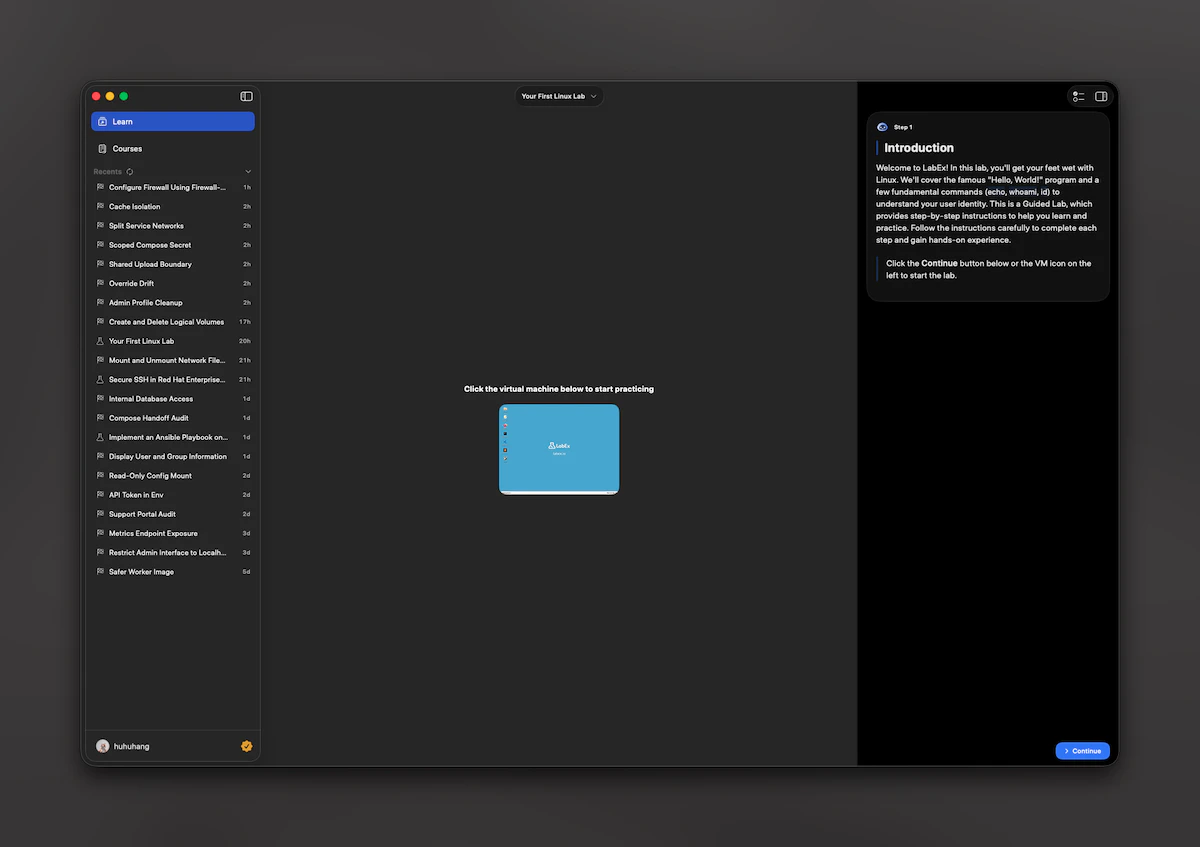
 This guide focuses on the main path a new user follows. For how LabEx works on the web, see Welcome and Quick Start.
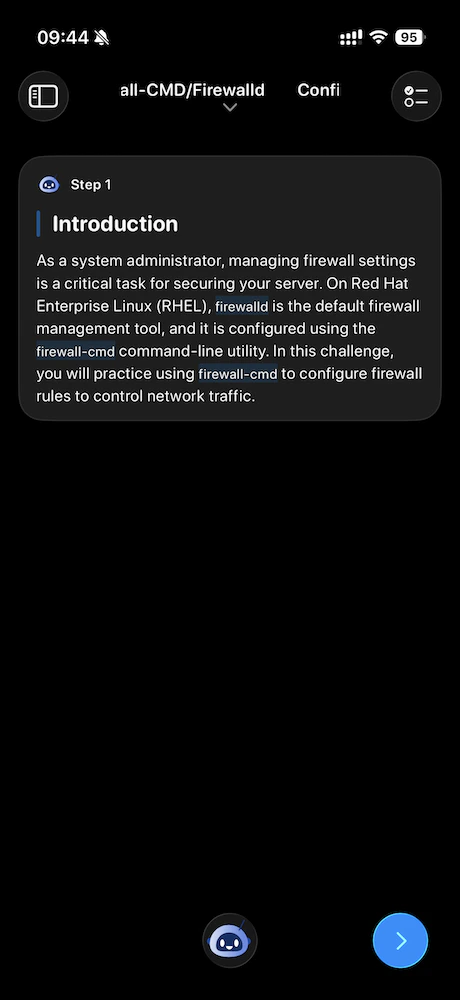
Install and open
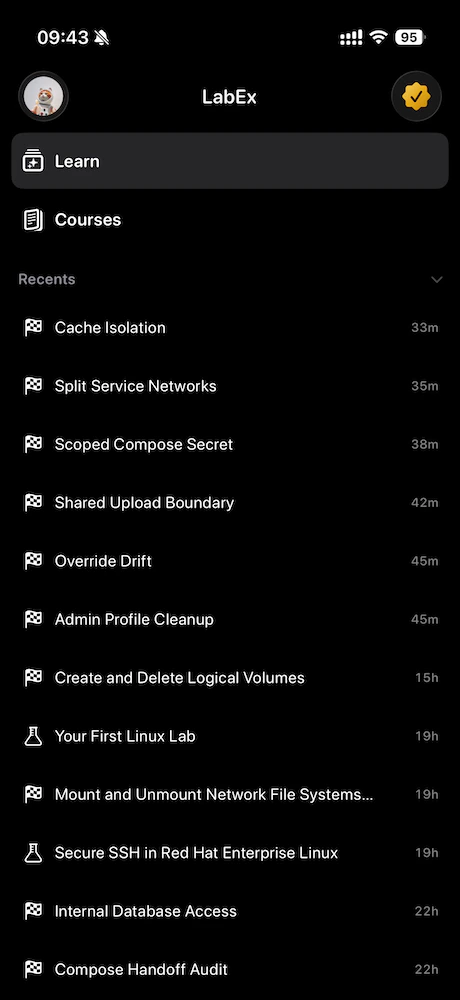
Install LabEx from the App Store on your iPhone or Mac. The store page shows the minimum system version required on your device. When you open the app, you start from the learning-first sign-in experience:- On iPhone, you see the learning home welcome, then the same sign-in choices described below.
- On Mac, if you are not signed in yet, you see a login screen first with the same choices; after sign-in, the Learning / Courses shell appears.
Sign in (learning home)
You need a LabEx account to use the app. Sign-in starts from the learning-first entry (welcome on the learning home for iPhone, or the Mac login screen), not from the course list or profile alone. After a short welcome sequence, you choose how to sign in:- Sign in with Apple
- Sign in with Google
- Email and password
After you sign in: where the app takes you
Once you are signed in, the app picks a starting lab in this order:-
Running VM
If you already have an active virtual machine session for a lab, the app opens that lab so you can continue. -
Continue learning
If you have an in-progress course on LabEx with a current lab, the app opens that lab. -
Getting started lab
If neither applies, the app opens a default Quick Start with Linux entry lab so you can begin immediately.
Links that open the app
LabEx content links can open in the app when configured on your device:- Course links open the course lab list first. You choose a lab, then enter the learning screen.
- Lab links open the learning screen for that lab directly.
- Pricing links inside step text open in-app pricing on iPhone (sheet) or Mac (pricing window).
labex.io (and www.labex.io), optional language prefixes in the path, and labex:// style links are supported where applicable.
Live Activity (iPhone only)
On iPhone, when you have a qualifying running VM, the app can show a Live Activity with the lab name and session time. After the VM stops, the activity may show a stopped state until it is replaced or cleared (for example, after sign-out or a new running session). This feature is not available on Mac.Mac at a glance
On Mac, the main window uses a sidebar for Learning and Courses, similar in spirit to iPhone but laid out for a desktop. Account and pricing open in separate windows instead of full-screen sheets.