> ## Documentation Index
> Fetch the complete documentation index at: https://support.labex.io/llms.txt
> Use this file to discover all available pages before exploring further.
# LabEx VM WebIDE Interface
> The LabEx WebIDE provides a modern, VS Code-like development environment for coding tasks. Built on Ubuntu 22.04, it offers a familiar interface for writing, compiling, and running code across multiple programming languages.
## WebIDE Preview
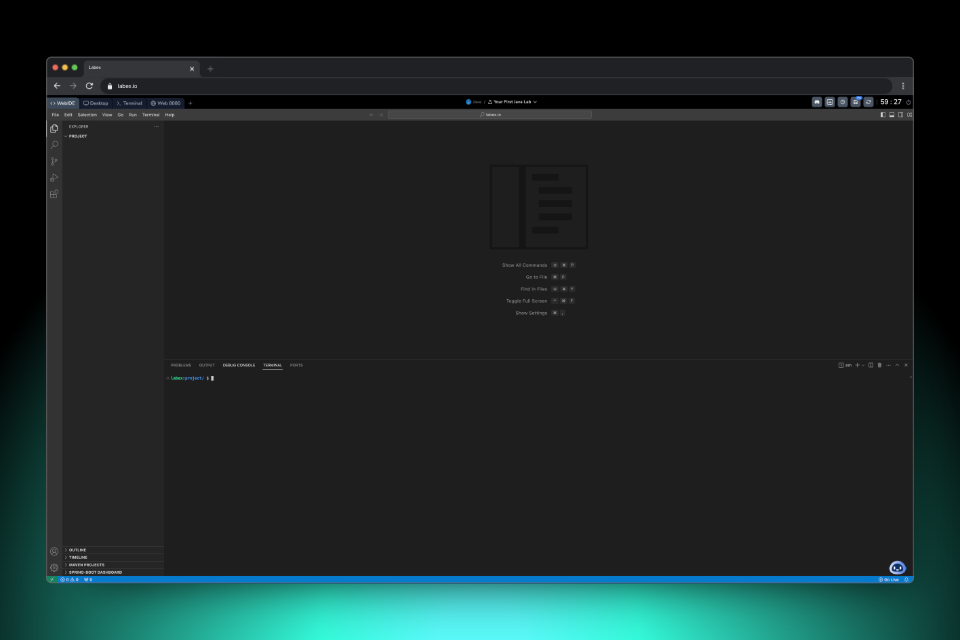 The WebIDE environment is particularly useful for:
1. Writing and debugging code in various programming languages (Java, JavaScript, Python, etc.)
2. Web development projects with live preview capabilities, see [Create Your First HTML Page in WebIDE
](https://labex.io/tutorials/html-create-your-first-html-page-in-webide-451041)
3. Managing project files and directories through an intuitive interface
4. Integrated terminal operations for command-line tasks
## Environment Layout
The WebIDE interface consists of several key components:
1. Left Sidebar:
* File explorer for project navigation
* Search functionality
* Source control for Git operations
* Extensions panel
2. Editor Area: Main coding workspace
3. Bottom Panel: Terminal, problems, and output
4. Status Bar: Quick access to settings and live preview
5. Top Menu Bar: File, Edit, View, and other options
## Terminal Access
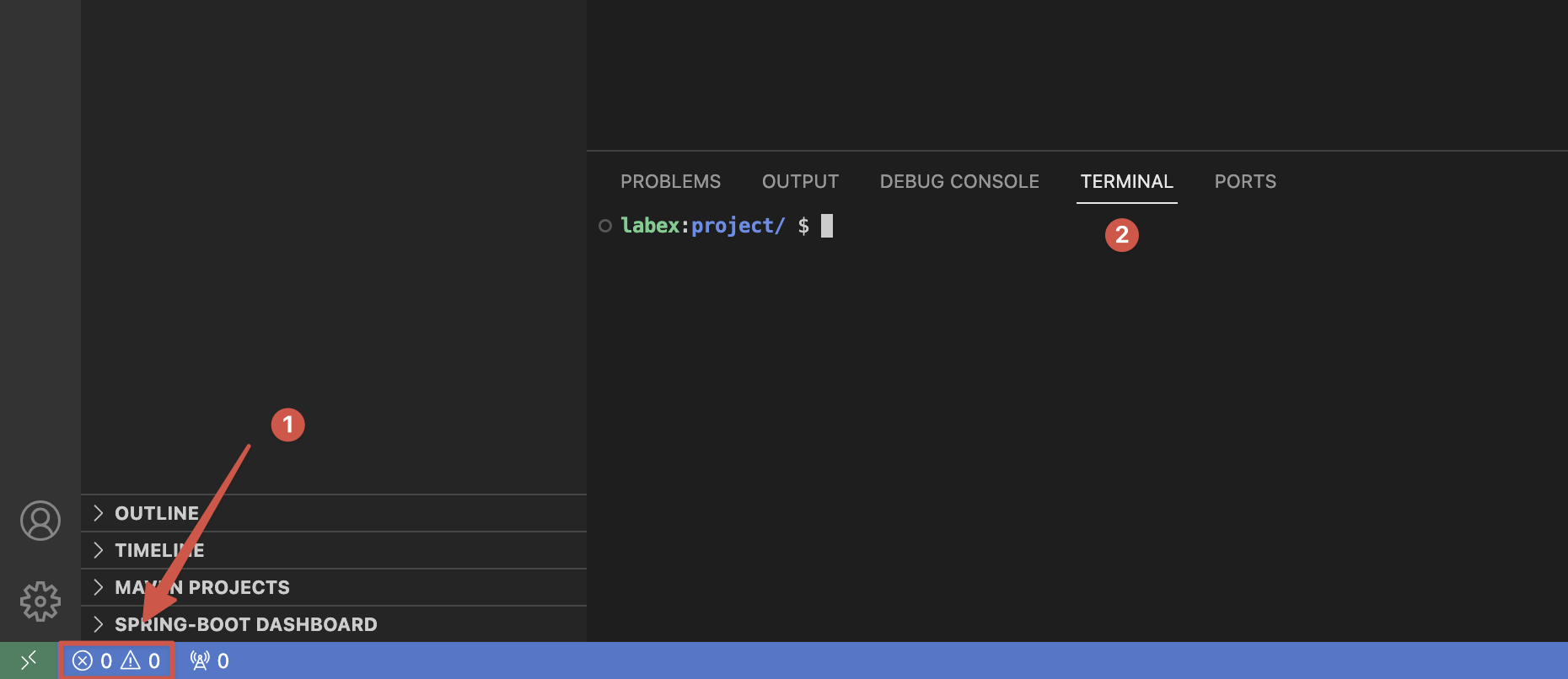
You can open the terminal in two ways:
1. Click the icon in the left bottom corner, and switch to the Terminal tab;
The WebIDE environment is particularly useful for:
1. Writing and debugging code in various programming languages (Java, JavaScript, Python, etc.)
2. Web development projects with live preview capabilities, see [Create Your First HTML Page in WebIDE
](https://labex.io/tutorials/html-create-your-first-html-page-in-webide-451041)
3. Managing project files and directories through an intuitive interface
4. Integrated terminal operations for command-line tasks
## Environment Layout
The WebIDE interface consists of several key components:
1. Left Sidebar:
* File explorer for project navigation
* Search functionality
* Source control for Git operations
* Extensions panel
2. Editor Area: Main coding workspace
3. Bottom Panel: Terminal, problems, and output
4. Status Bar: Quick access to settings and live preview
5. Top Menu Bar: File, Edit, View, and other options
## Terminal Access
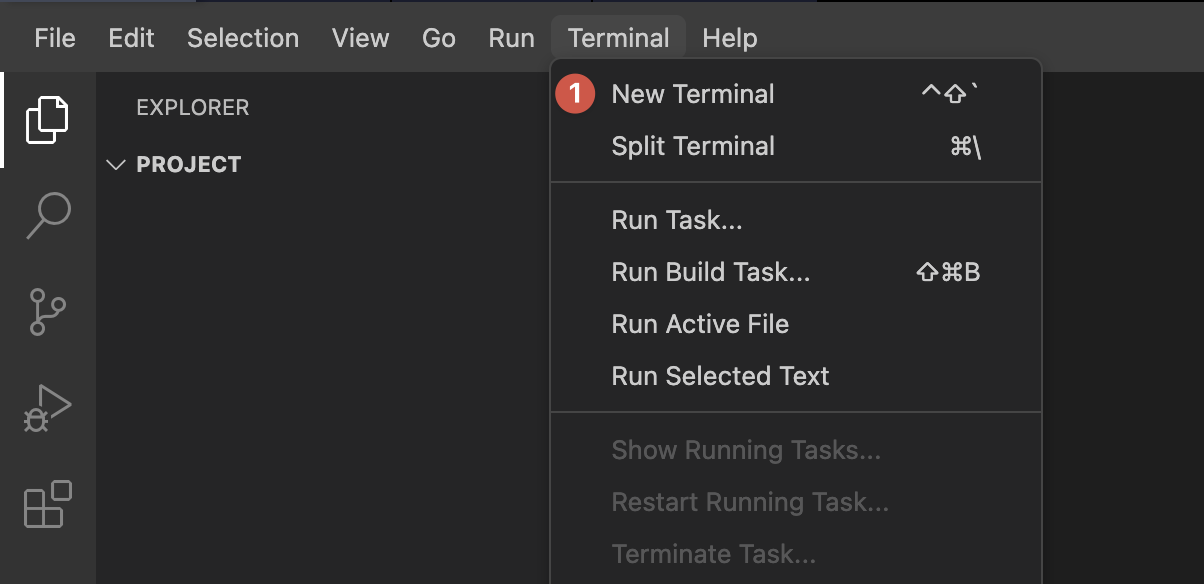
You can open the terminal in two ways:
1. Click the icon in the left bottom corner, and switch to the Terminal tab;
 2. Use the top menu: Terminal > New Terminal
 ## Preview HTML
To preview your HTML file:
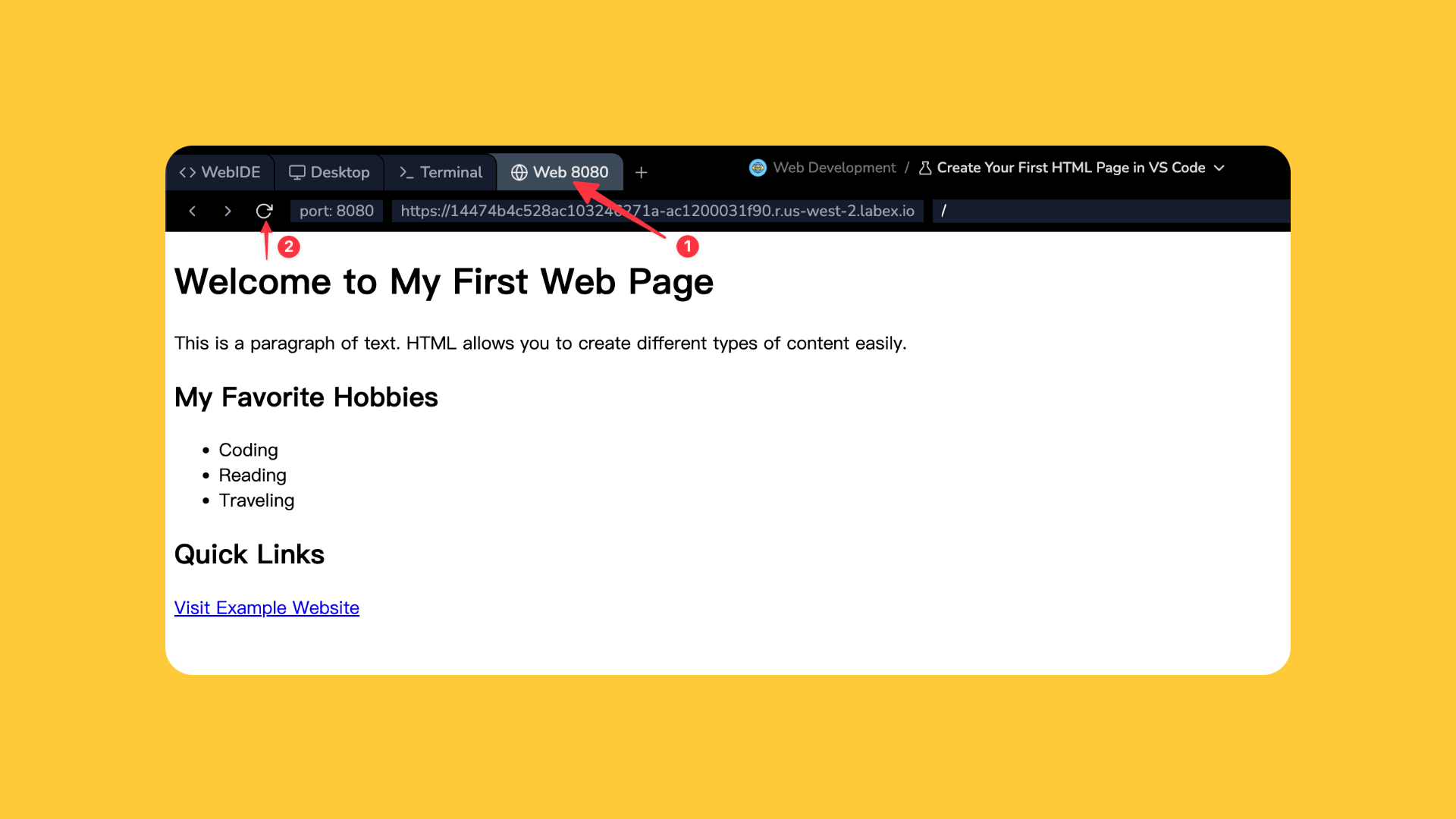
1. In the WebIDE, click on the "Go Live" button at the bottom right corner.
## Preview HTML
To preview your HTML file:
1. In the WebIDE, click on the "Go Live" button at the bottom right corner.
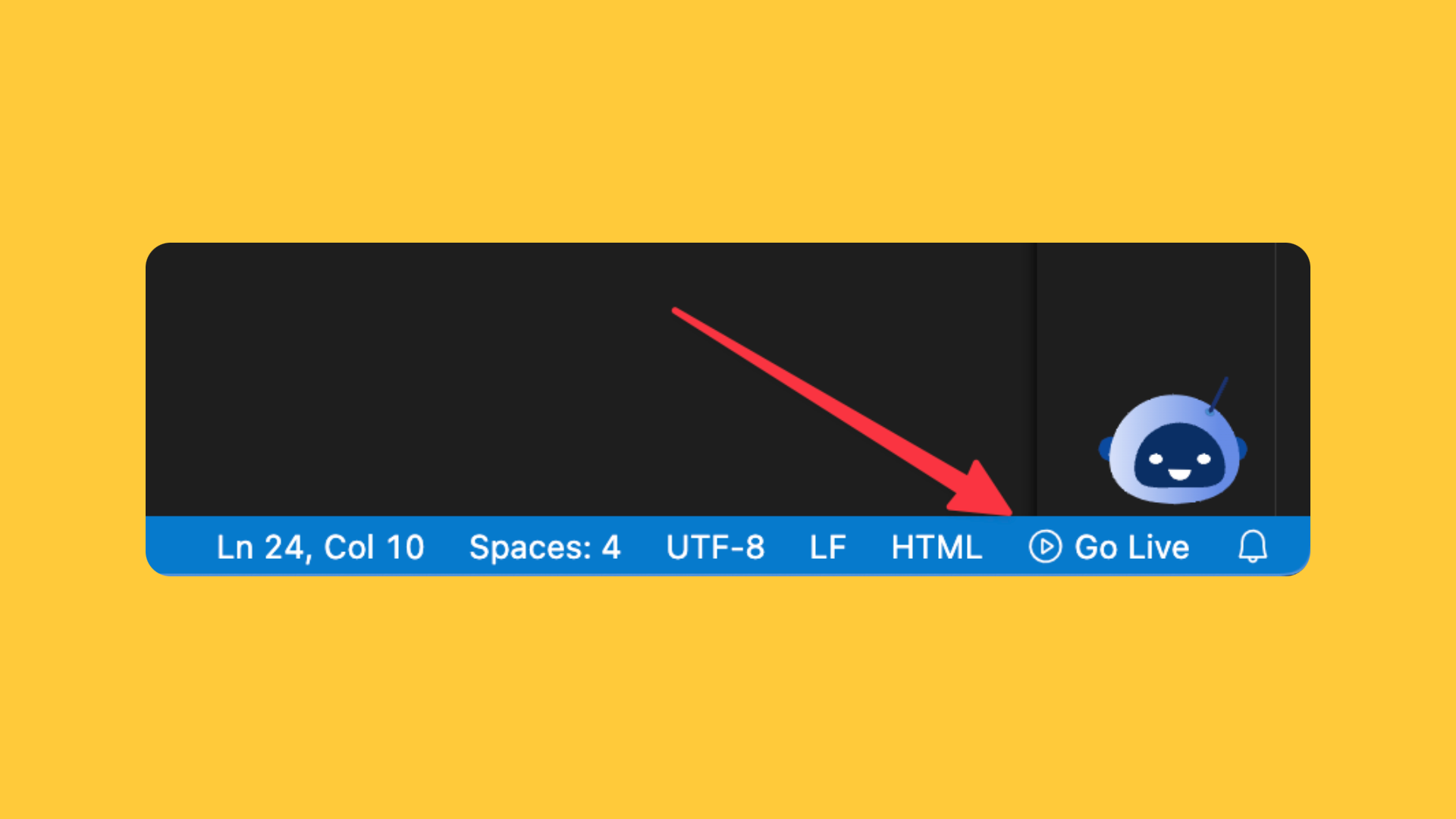 2. A new browser tab will open with your HTML page rendered.
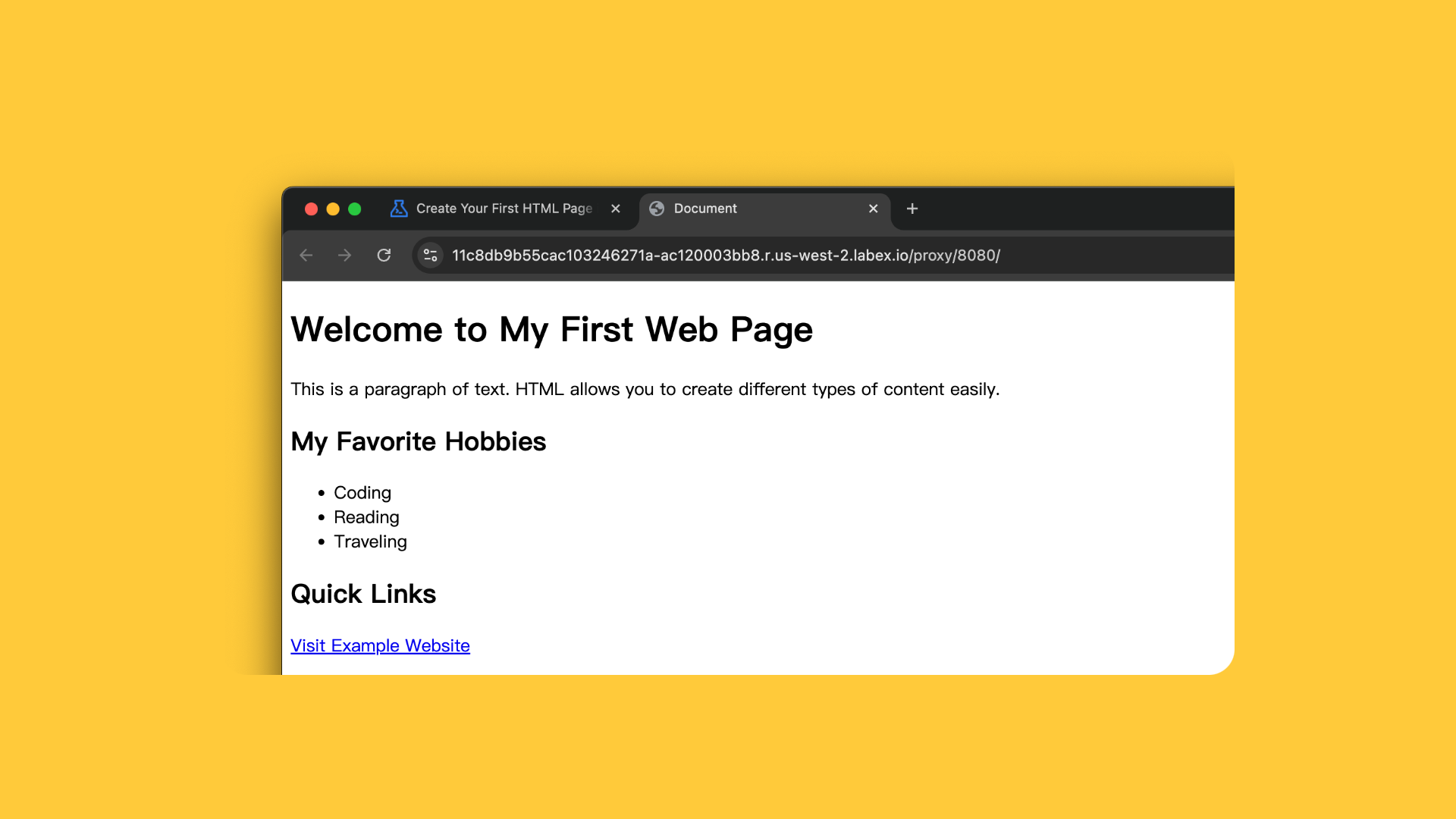 3. Or, you can click on the "Web 8080" tab to open the preview.
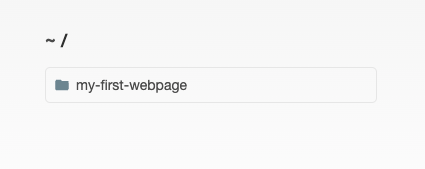
 4. If your project under a subdirectory, you can access it by click the subdirectory name in the explorer, then it will automatically preview the `index.html` file in that directory.
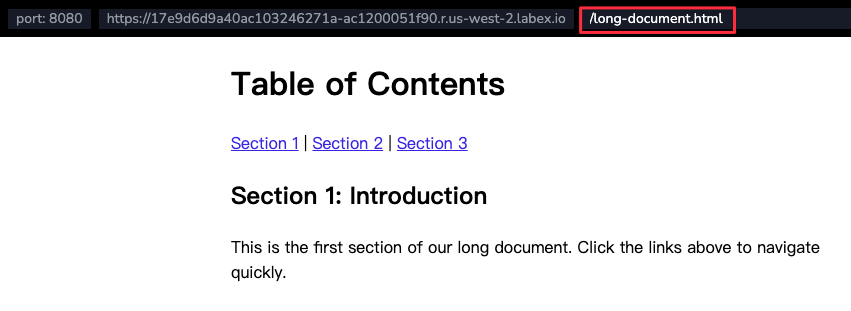
 5. If your project has multiple HTML files, including `index.html`, you can append the file name to the URL to preview it directly. For example, `https://xxx.labex.io/another-file.html`.
 6. You can open the preview in a new tab by clicking the "Open in New Tab" button. It will open the preview in a new browser tab.
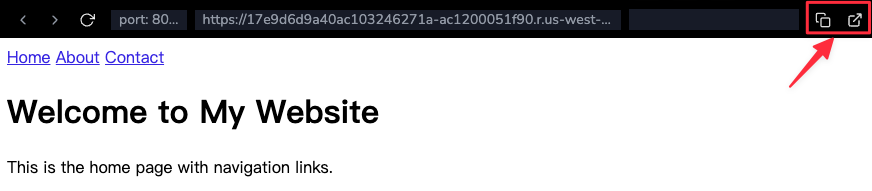 "Go Live" will automatically:
* Start a web server
* Provide real-time updates as you modify your code
> Tips: LabEx VM hosts the preview on port 8080. You can share the preview link with others to showcase your work. After your lab vm is stopped, the preview link will no longer work.
## Usage Scenarios
This is a sample Java lab that demonstrates how to write, compile, and run a
simple Java program using the LabEx WebIDE.
Working with Java projects in WebIDE:
"Go Live" will automatically:
* Start a web server
* Provide real-time updates as you modify your code
> Tips: LabEx VM hosts the preview on port 8080. You can share the preview link with others to showcase your work. After your lab vm is stopped, the preview link will no longer work.
## Usage Scenarios
This is a sample Java lab that demonstrates how to write, compile, and run a
simple Java program using the LabEx WebIDE.
Working with Java projects in WebIDE:
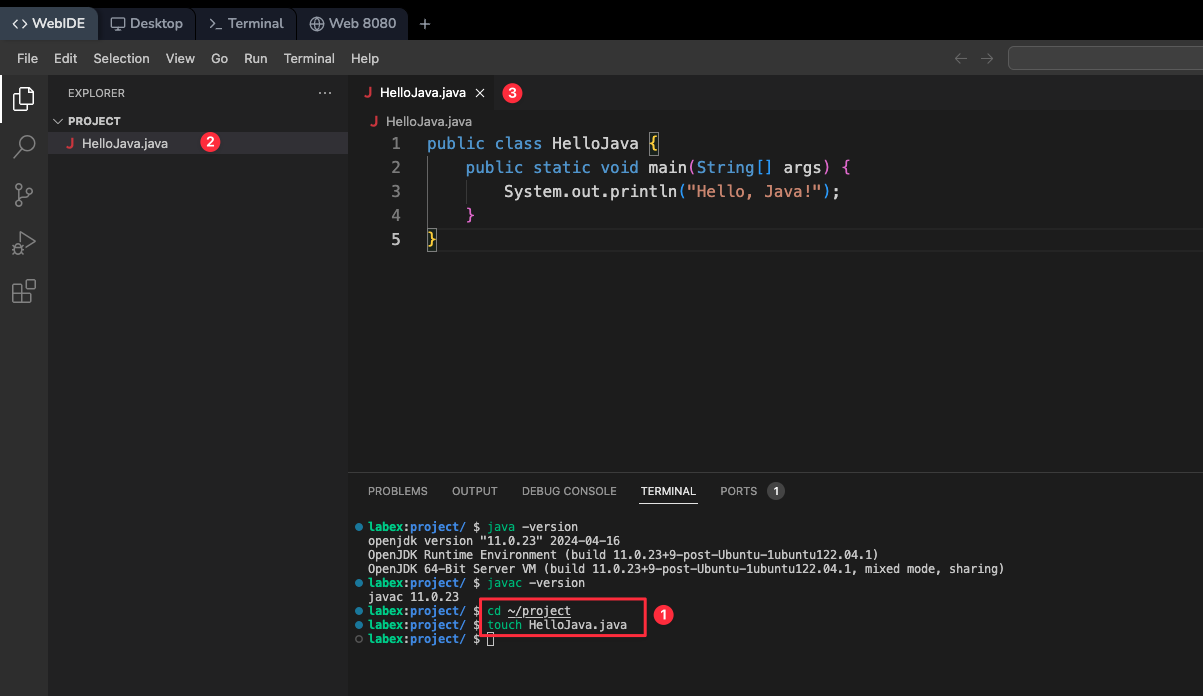 1. Create a new Java file via the explorer
2. Write your Java code with syntax highlighting
3. Compile and run in the terminal:
```bash theme={null}
javac MyClass.java
java MyClass
```
4. View compilation errors and warnings in real-time
This is a sample HTML lab that demonstrates how to create a simple web page
using the LabEx WebIDE.
For frontend development tasks:
1. Create a new Java file via the explorer
2. Write your Java code with syntax highlighting
3. Compile and run in the terminal:
```bash theme={null}
javac MyClass.java
java MyClass
```
4. View compilation errors and warnings in real-time
This is a sample HTML lab that demonstrates how to create a simple web page
using the LabEx WebIDE.
For frontend development tasks:
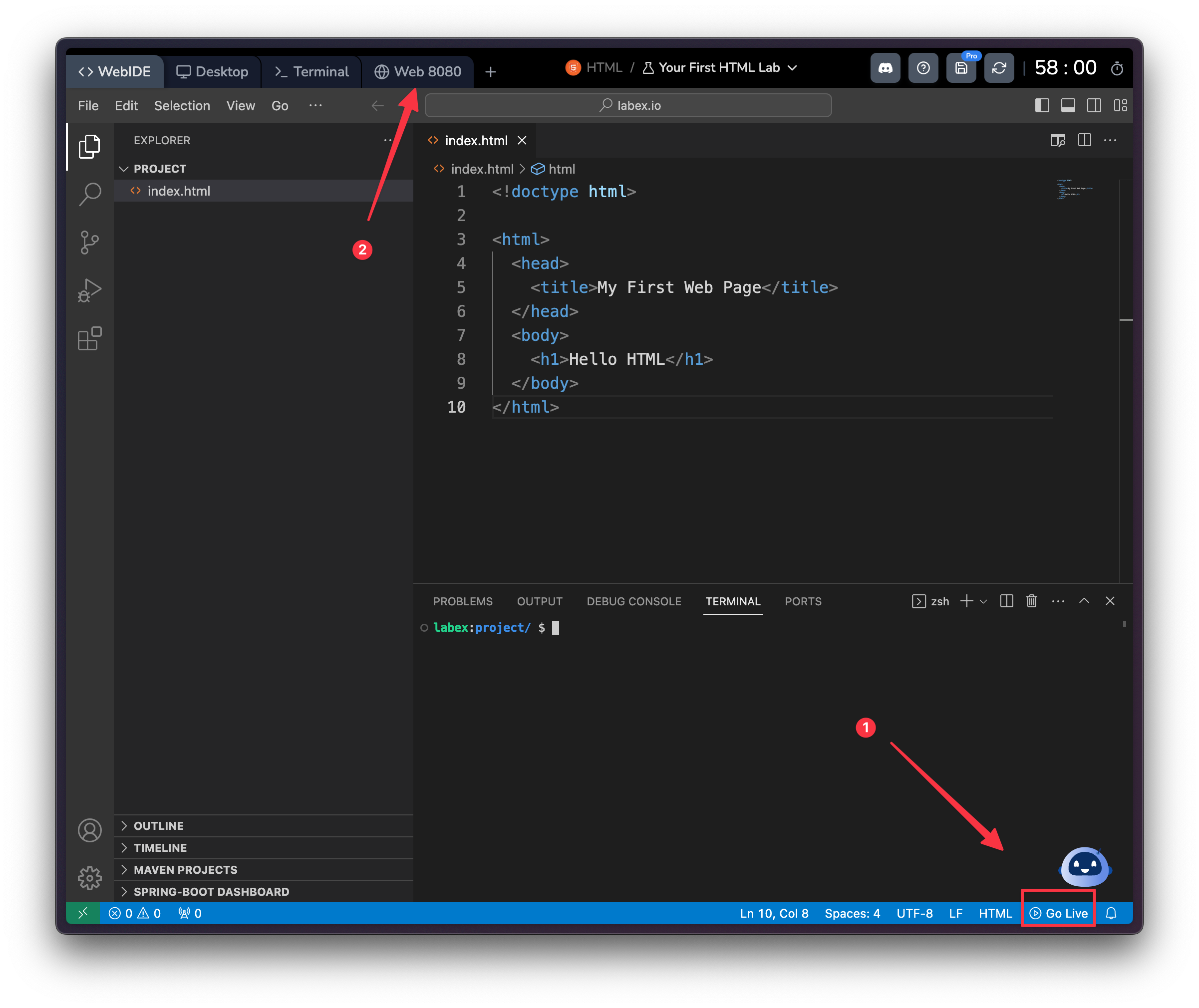 1. Create HTML, CSS, and JavaScript files
2. Click the "Go Live" button in the bottom right corner
3. Access your web page through:
* Web 8080 tab at the top of the LabEx VM
* Create new port preview tabs using the + button
Note: Your project is automatically deployed to a public URL on the LabEx server, making it accessible through the Web tabs.
This is a sample Python challenge that demonstrates how to process astronaut
names using the LabEx WebIDE.
For Python programming:
1. Create HTML, CSS, and JavaScript files
2. Click the "Go Live" button in the bottom right corner
3. Access your web page through:
* Web 8080 tab at the top of the LabEx VM
* Create new port preview tabs using the + button
Note: Your project is automatically deployed to a public URL on the LabEx server, making it accessible through the Web tabs.
This is a sample Python challenge that demonstrates how to process astronaut
names using the LabEx WebIDE.
For Python programming:
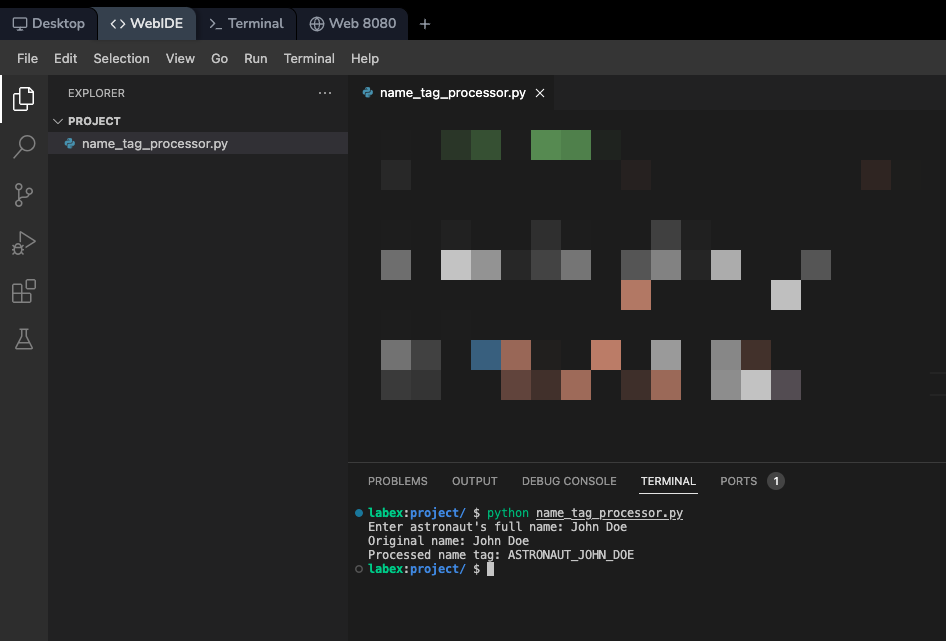 1. Create a Python file in the explorer
2. Write your Python code with:
* Syntax highlighting
* Code completion
* Error detection
3. Run your script in the terminal:
```bash theme={null}
python3 script.py
```
4. Use the integrated debugger for step-by-step execution
## Frequently Asked Questions
LabEx VM automatically deploys your web projects:
1. Create a Python file in the explorer
2. Write your Python code with:
* Syntax highlighting
* Code completion
* Error detection
3. Run your script in the terminal:
```bash theme={null}
python3 script.py
```
4. Use the integrated debugger for step-by-step execution
## Frequently Asked Questions
LabEx VM automatically deploys your web projects:
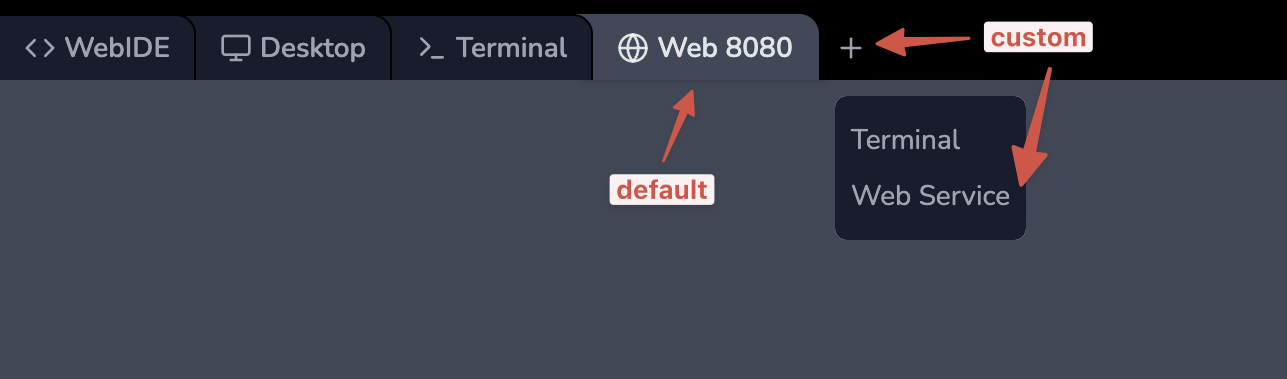 1. Default port 8080:
* Click the "Web 8080" tab at the top of the LabEx VM
* Your application will be accessible through a public URL
2. Custom ports:
* Click the + button to create new port preview tabs
* Each port gets its own public URL
* Useful for running multiple services (e.g., frontend and backend)
Note: Unlike local development, you don't access localhost directly as LabEx runs in the cloud.
Common shortcuts in the WebIDE:
* **File Operations**
* New File: Ctrl+N
* Save: Ctrl+S
* Find: Ctrl+F
* Replace: Ctrl+H
* **Panel Controls**
* Toggle Sidebar: Ctrl+B
* Toggle Terminal: Ctrl+\`
* Command Palette: Ctrl+Shift+P
* **Editor Features**
* Multi-cursor: Alt+Click
* Select All Occurrences: Ctrl+Shift+L
* Format Document: Shift+Alt+F
Yes, you can install additional tools using the Ubuntu package manager:
```bash theme={null}
sudo apt update
sudo apt install package-name
```
For language-specific package managers:
* Node.js/npm:
```bash theme={null}
npm install package-name
```
* Python/pip:
```bash theme={null}
pip install package-name
```
Remember that installations are temporary and will be reset when your session ends.
The WebIDE provides several ways to manage files:
1. **Upload Files:**
* Drag and drop files into the explorer
* Use the upload/download after right-clicking in the explorer
1. Default port 8080:
* Click the "Web 8080" tab at the top of the LabEx VM
* Your application will be accessible through a public URL
2. Custom ports:
* Click the + button to create new port preview tabs
* Each port gets its own public URL
* Useful for running multiple services (e.g., frontend and backend)
Note: Unlike local development, you don't access localhost directly as LabEx runs in the cloud.
Common shortcuts in the WebIDE:
* **File Operations**
* New File: Ctrl+N
* Save: Ctrl+S
* Find: Ctrl+F
* Replace: Ctrl+H
* **Panel Controls**
* Toggle Sidebar: Ctrl+B
* Toggle Terminal: Ctrl+\`
* Command Palette: Ctrl+Shift+P
* **Editor Features**
* Multi-cursor: Alt+Click
* Select All Occurrences: Ctrl+Shift+L
* Format Document: Shift+Alt+F
Yes, you can install additional tools using the Ubuntu package manager:
```bash theme={null}
sudo apt update
sudo apt install package-name
```
For language-specific package managers:
* Node.js/npm:
```bash theme={null}
npm install package-name
```
* Python/pip:
```bash theme={null}
pip install package-name
```
Remember that installations are temporary and will be reset when your session ends.
The WebIDE provides several ways to manage files:
1. **Upload Files:**
* Drag and drop files into the explorer
* Use the upload/download after right-clicking in the explorer
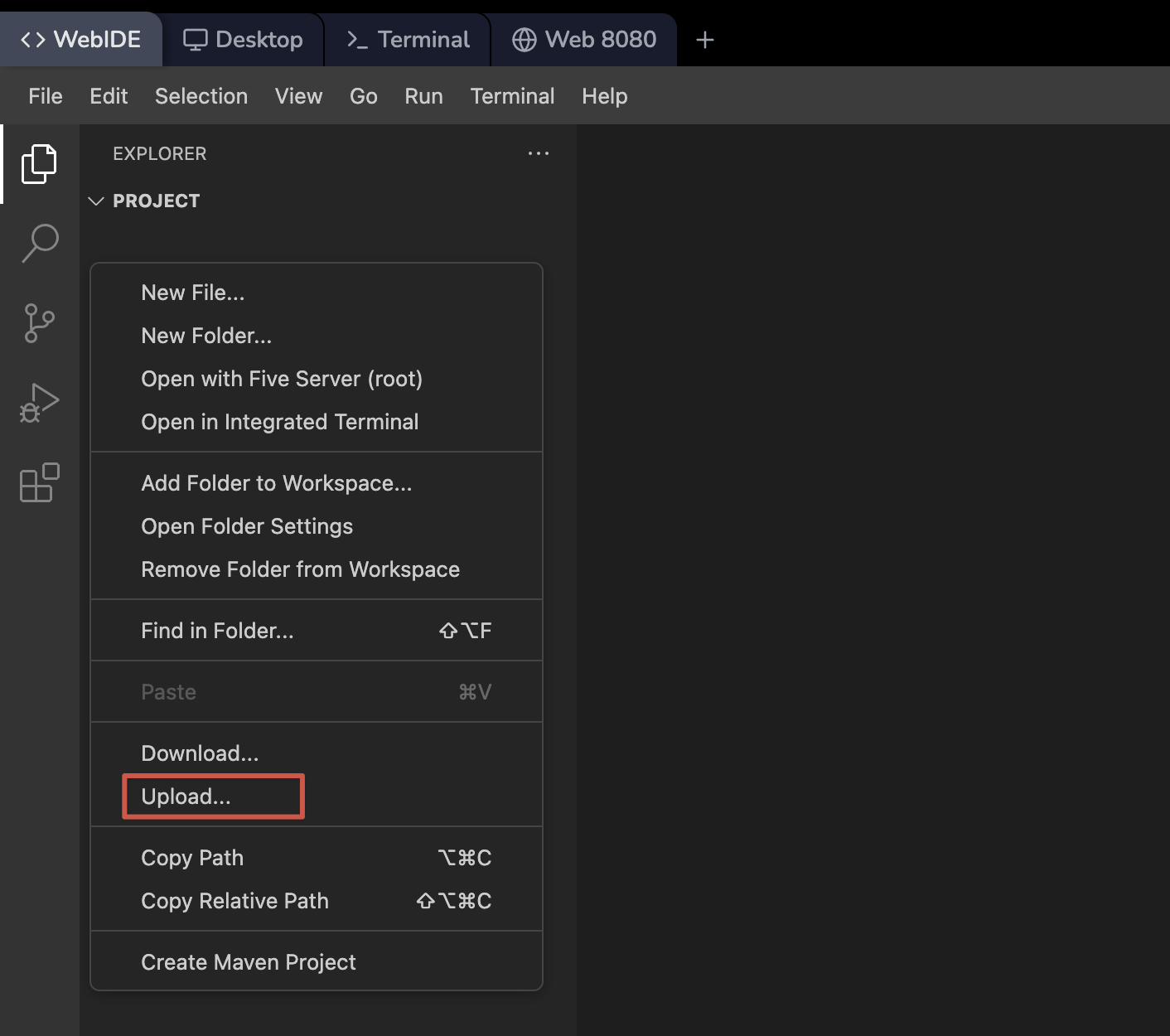 2. **Download Files:**
* Right-click the file in explorer
* Select "Download"
3. **Copy/Paste:**
* Text content can be copied directly between your local machine and the WebIDE
* Binary files should use the upload/download features
Remember that all files are temporary and will be lost when your session ends.
2. **Download Files:**
* Right-click the file in explorer
* Select "Download"
3. **Copy/Paste:**
* Text content can be copied directly between your local machine and the WebIDE
* Binary files should use the upload/download features
Remember that all files are temporary and will be lost when your session ends.