> ## Documentation Index
> Fetch the complete documentation index at: https://support.labex.io/llms.txt
> Use this file to discover all available pages before exploring further.
# LabEx VM Terminal Interface
> The LabEx Terminal Interface provides a lightweight, browser-based command-line environment powered by TTYD. Built on Ubuntu 22.04, it offers a streamlined interface for command-line operations and text-based tasks.
## Terminal Preview
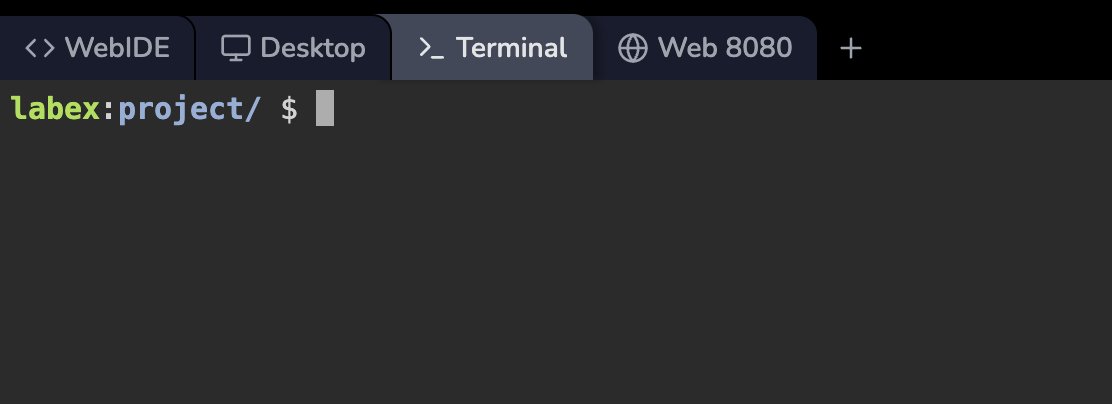 The Terminal environment is particularly useful for:
1. Command-line focused tasks and operations
2. Server administration and system configuration
3. Text-based programming and debugging
4. Resource-efficient remote access when GUI is not needed
## Access the Terminal
1. If the instructor recommends using the terminal environment by default for the Lab, you'll see the terminal environment when you start it.
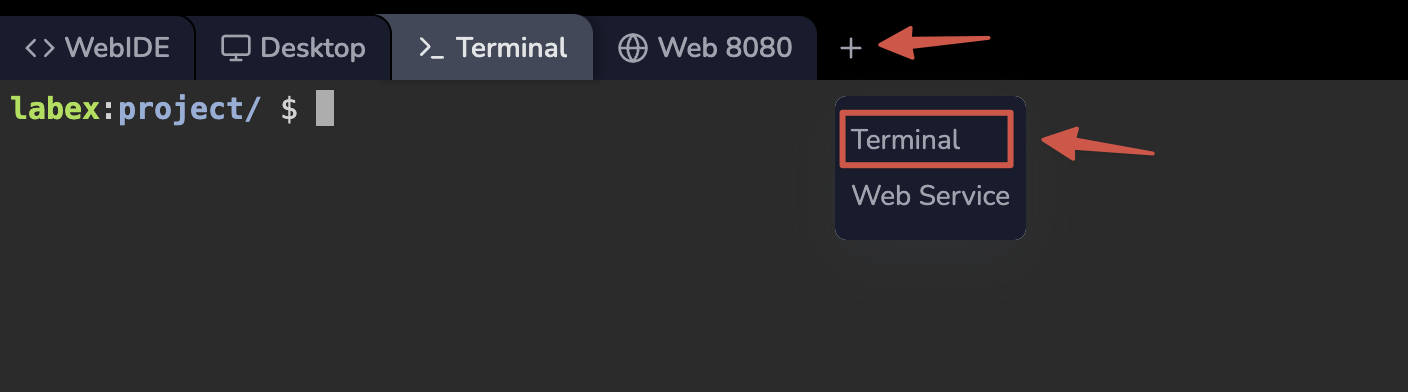
2. You can create additional terminal sessions by clicking the + button at the top of the interface.
The Terminal environment is particularly useful for:
1. Command-line focused tasks and operations
2. Server administration and system configuration
3. Text-based programming and debugging
4. Resource-efficient remote access when GUI is not needed
## Access the Terminal
1. If the instructor recommends using the terminal environment by default for the Lab, you'll see the terminal environment when you start it.
2. You can create additional terminal sessions by clicking the + button at the top of the interface.
 ## Environment Features
The Terminal Interface provides several key features:
1. Multiple Terminal Sessions:
* Create new sessions using the + button
* Switch between sessions using tabs
* Close sessions individually as needed
2. Full Ubuntu Environment:
* Based on Ubuntu 22.04 LTS
* Access to standard Ubuntu repositories
* Support for common command-line tools and utilities
3. Text-Based Tools:
* Vim/Nano text editors
* Command-line compilers and interpreters
* Package management via apt
* Git for version control
## TTYD Features
The Terminal Interface is powered by [TTYD](https://github.com/tsl0922/ttyd) (Terminal Over HTTP) and provides several advanced features:
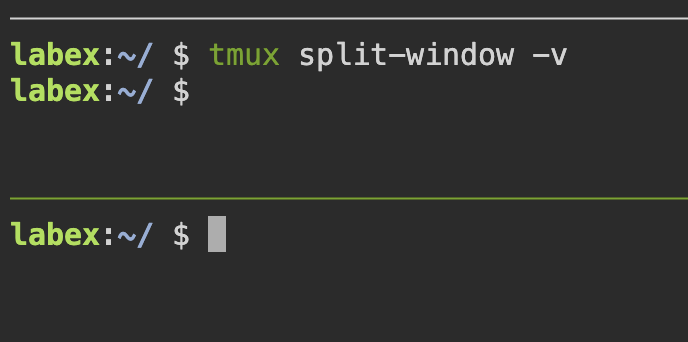
**Using tmux Commands:**
```bash theme={null}
# Create splits
tmux split-window -h # Split vertically
tmux split-window -v # Split horizontally
tmux split-window -hf # Full-height vertical split
tmux split-window -vf # Full-width horizontal split
# Navigate between panes
tmux select-pane -L # Move to left pane
tmux select-pane -R # Move to right pane
tmux select-pane -U # Move to upper pane
tmux select-pane -D # Move to lower pane
# Resize panes
tmux resize-pane -L 10 # Resize 10 cells to the left
tmux resize-pane -R 10 # Resize 10 cells to the right
tmux resize-pane -U 5 # Resize 5 cells up
tmux resize-pane -D 5 # Resize 5 cells down
# Additional operations
tmux kill-pane # Close current pane
tmux select-layout tiled # Balance pane sizes
```
## Environment Features
The Terminal Interface provides several key features:
1. Multiple Terminal Sessions:
* Create new sessions using the + button
* Switch between sessions using tabs
* Close sessions individually as needed
2. Full Ubuntu Environment:
* Based on Ubuntu 22.04 LTS
* Access to standard Ubuntu repositories
* Support for common command-line tools and utilities
3. Text-Based Tools:
* Vim/Nano text editors
* Command-line compilers and interpreters
* Package management via apt
* Git for version control
## TTYD Features
The Terminal Interface is powered by [TTYD](https://github.com/tsl0922/ttyd) (Terminal Over HTTP) and provides several advanced features:
**Using tmux Commands:**
```bash theme={null}
# Create splits
tmux split-window -h # Split vertically
tmux split-window -v # Split horizontally
tmux split-window -hf # Full-height vertical split
tmux split-window -vf # Full-width horizontal split
# Navigate between panes
tmux select-pane -L # Move to left pane
tmux select-pane -R # Move to right pane
tmux select-pane -U # Move to upper pane
tmux select-pane -D # Move to lower pane
# Resize panes
tmux resize-pane -L 10 # Resize 10 cells to the left
tmux resize-pane -R 10 # Resize 10 cells to the right
tmux resize-pane -U 5 # Resize 5 cells up
tmux resize-pane -D 5 # Resize 5 cells down
# Additional operations
tmux kill-pane # Close current pane
tmux select-layout tiled # Balance pane sizes
```
 ### Scrolling in tmux
In tmux, **mouse wheel scrolling and ordinary mouse drag-to-select copy do not coexist** in one mode. The terminal must either give the wheel to tmux (for scrolling the scrollback) or leave mouse events to the browser (for highlighting and copying), not both at once with the same gestures.
LabEx keeps mouse support **off** by default so you can select and copy in the browser in the usual way. If you turn mouse mode **on**, the wheel scrolls inside tmux, but normal click-and-drag selection for copy is no longer available until you change mode again.
**Temporarily enable mouse scrolling (current session only):**
```bash theme={null}
tmux set -g mouse on
```
**Permanently enable mouse scrolling (all future sessions):**
```bash theme={null}
echo 'set -g mouse on' >> ~/.tmux.conf && tmux source-file ~/.tmux.conf
```
**When you need copying again:**
* Turn mouse mode off: `tmux set -g mouse off`, or remove or comment out `set -g mouse on` in `~/.tmux.conf` and run `tmux source-file ~/.tmux.conf`.
* Alternatively, some clients let you bypass tmux mouse handling by holding **Shift** while selecting; behavior depends on the browser and TTYD, so toggling mouse off is the reliable way to restore simple copy.
## Usage Scenarios
Common terminal commands you'll use:
```bash theme={null}
# File and Directory Operations
ls -la # List all files with details
cd /path/to/dir # Change directory
mkdir new-dir # Create directory
rm -rf dir # Remove directory
# System Information
uname -a # System information
df -h # Disk usage
top # Process monitor
```
You can use various text editors:
1. Vim:
```bash theme={null}
vim filename.txt # Open/create file in Vim
```
2. Nano:
```bash theme={null}
nano filename.txt # Open/create file in Nano
```
Both editors are pre-installed and ready to use.
Install and manage software packages:
```bash theme={null}
# Update package list
sudo apt update
# Install new packages
sudo apt install package-name
# Remove packages
sudo apt remove package-name
# Search for packages
apt search keyword
```
## Frequently Asked Questions
TTYD supports several methods for copy/paste:
1. Using Mouse:
* Select text to copy
* Right-click to paste
2. Using Keyboard:
* Copy: Ctrl+Insert or Ctrl+Shift+C
* Paste: Shift+Insert or Ctrl+Shift+V
Note: Actual shortcuts may vary depending on your browser and operating system.
Yes, you can transfer files using command-line tools:
1. For text content:
* Copy and paste directly into the terminal
* Use text editors to create and modify files
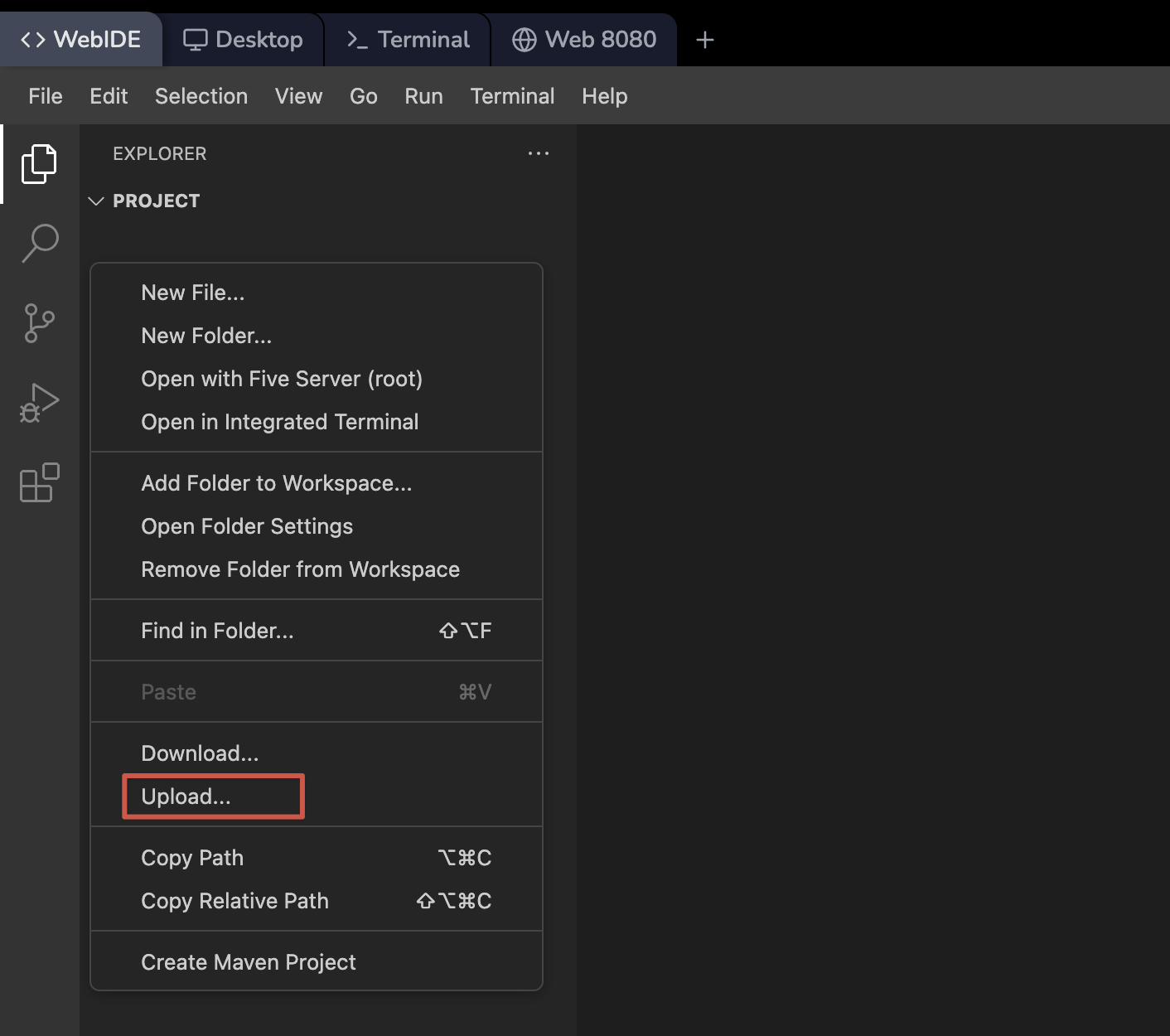
2. For binary files:
* Use the WebIDE interface for file uploads/downloads
* Switch to the WebIDE tab for file management operations
### Scrolling in tmux
In tmux, **mouse wheel scrolling and ordinary mouse drag-to-select copy do not coexist** in one mode. The terminal must either give the wheel to tmux (for scrolling the scrollback) or leave mouse events to the browser (for highlighting and copying), not both at once with the same gestures.
LabEx keeps mouse support **off** by default so you can select and copy in the browser in the usual way. If you turn mouse mode **on**, the wheel scrolls inside tmux, but normal click-and-drag selection for copy is no longer available until you change mode again.
**Temporarily enable mouse scrolling (current session only):**
```bash theme={null}
tmux set -g mouse on
```
**Permanently enable mouse scrolling (all future sessions):**
```bash theme={null}
echo 'set -g mouse on' >> ~/.tmux.conf && tmux source-file ~/.tmux.conf
```
**When you need copying again:**
* Turn mouse mode off: `tmux set -g mouse off`, or remove or comment out `set -g mouse on` in `~/.tmux.conf` and run `tmux source-file ~/.tmux.conf`.
* Alternatively, some clients let you bypass tmux mouse handling by holding **Shift** while selecting; behavior depends on the browser and TTYD, so toggling mouse off is the reliable way to restore simple copy.
## Usage Scenarios
Common terminal commands you'll use:
```bash theme={null}
# File and Directory Operations
ls -la # List all files with details
cd /path/to/dir # Change directory
mkdir new-dir # Create directory
rm -rf dir # Remove directory
# System Information
uname -a # System information
df -h # Disk usage
top # Process monitor
```
You can use various text editors:
1. Vim:
```bash theme={null}
vim filename.txt # Open/create file in Vim
```
2. Nano:
```bash theme={null}
nano filename.txt # Open/create file in Nano
```
Both editors are pre-installed and ready to use.
Install and manage software packages:
```bash theme={null}
# Update package list
sudo apt update
# Install new packages
sudo apt install package-name
# Remove packages
sudo apt remove package-name
# Search for packages
apt search keyword
```
## Frequently Asked Questions
TTYD supports several methods for copy/paste:
1. Using Mouse:
* Select text to copy
* Right-click to paste
2. Using Keyboard:
* Copy: Ctrl+Insert or Ctrl+Shift+C
* Paste: Shift+Insert or Ctrl+Shift+V
Note: Actual shortcuts may vary depending on your browser and operating system.
Yes, you can transfer files using command-line tools:
1. For text content:
* Copy and paste directly into the terminal
* Use text editors to create and modify files
2. For binary files:
* Use the WebIDE interface for file uploads/downloads
* Switch to the WebIDE tab for file management operations
 Remember that all files are temporary and will be lost when your session ends.
You can install software using apt:
```bash theme={null}
# Update package list
sudo apt update
# Install software
sudo apt install package-name
```
Note that:
1. Installations are temporary and will be reset when your session ends
2. You have full sudo privileges for package management
3. Only install packages needed for your current lab
The Terminal Interface is ideal when:
1. You need a lightweight environment that loads quickly
2. Your tasks are primarily command-line based
3. You want to focus on terminal commands without GUI distractions
4. You're working on a low-bandwidth connection
5. You're completing labs that don't require graphical interfaces
Consider using Desktop or WebIDE interfaces if you need GUI applications or advanced IDE features.
If your terminal becomes unresponsive:
1. Try pressing Ctrl+C to interrupt the current process
2. Create a new terminal session using the + button
3. If needed, refresh the browser page to reset all sessions
Note that refreshing will close all current terminal sessions and start fresh ones.
Remember that all files are temporary and will be lost when your session ends.
You can install software using apt:
```bash theme={null}
# Update package list
sudo apt update
# Install software
sudo apt install package-name
```
Note that:
1. Installations are temporary and will be reset when your session ends
2. You have full sudo privileges for package management
3. Only install packages needed for your current lab
The Terminal Interface is ideal when:
1. You need a lightweight environment that loads quickly
2. Your tasks are primarily command-line based
3. You want to focus on terminal commands without GUI distractions
4. You're working on a low-bandwidth connection
5. You're completing labs that don't require graphical interfaces
Consider using Desktop or WebIDE interfaces if you need GUI applications or advanced IDE features.
If your terminal becomes unresponsive:
1. Try pressing Ctrl+C to interrupt the current process
2. Create a new terminal session using the + button
3. If needed, refresh the browser page to reset all sessions
Note that refreshing will close all current terminal sessions and start fresh ones.