> ## Documentation Index
> Fetch the complete documentation index at: https://support.labex.io/llms.txt
> Use this file to discover all available pages before exploring further.
# LabEx VM Jupyter Interface
> The LabEx Jupyter Interface provides an interactive Python environment based on Jupyter Notebook, perfect for data analysis, visualization, and machine learning tasks. Built on Ubuntu 22.04, it offers a familiar notebook-style interface for executing code cells and documenting your work.
## Jupyter Interface Preview
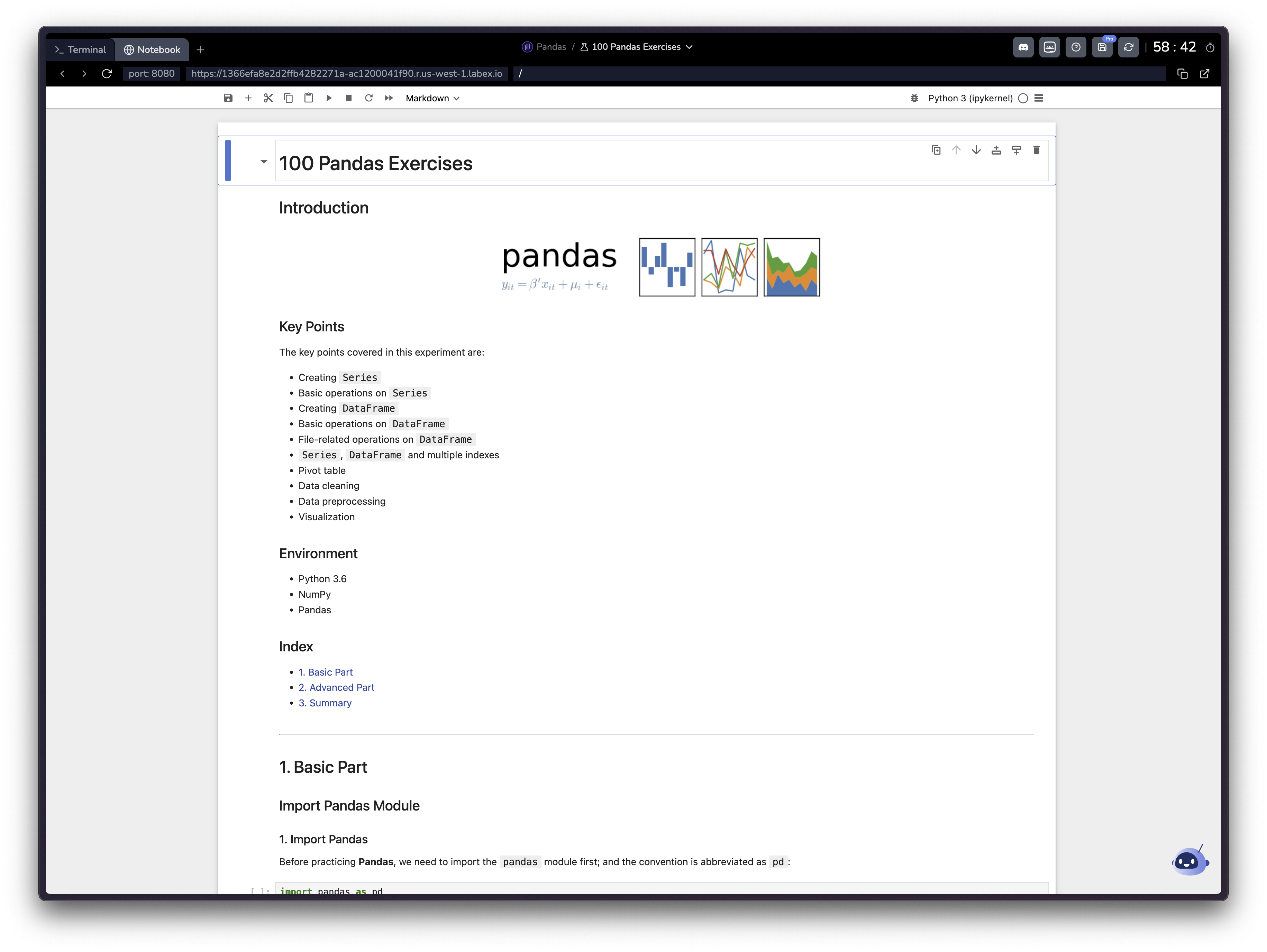 The Jupyter environment is particularly useful for:
1. Data analysis and visualization projects using Python libraries (Pandas, Matplotlib, etc.)
2. Machine learning and deep learning experiments
3. Interactive code execution with immediate feedback
4. Creating documented workflows combining code and markdown
5. Educational content with explanations and executable examples
## Access the Interface
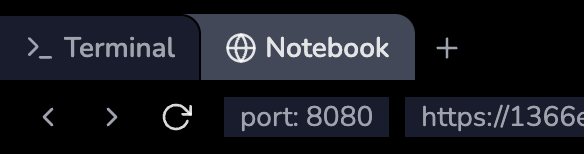
1. After starting a Jupyter-enabled lab, click the "Notebook" tab at the top of the page
2. Wait for the Jupyter interface to fully load
3. You'll see the familiar Jupyter Notebook interface in your browser
The Jupyter environment is particularly useful for:
1. Data analysis and visualization projects using Python libraries (Pandas, Matplotlib, etc.)
2. Machine learning and deep learning experiments
3. Interactive code execution with immediate feedback
4. Creating documented workflows combining code and markdown
5. Educational content with explanations and executable examples
## Access the Interface
1. After starting a Jupyter-enabled lab, click the "Notebook" tab at the top of the page
2. Wait for the Jupyter interface to fully load
3. You'll see the familiar Jupyter Notebook interface in your browser
 ## Interface Layout
The Jupyter interface consists of several key components:
1. Main Work Area:
## Interface Layout
The Jupyter interface consists of several key components:
1. Main Work Area:
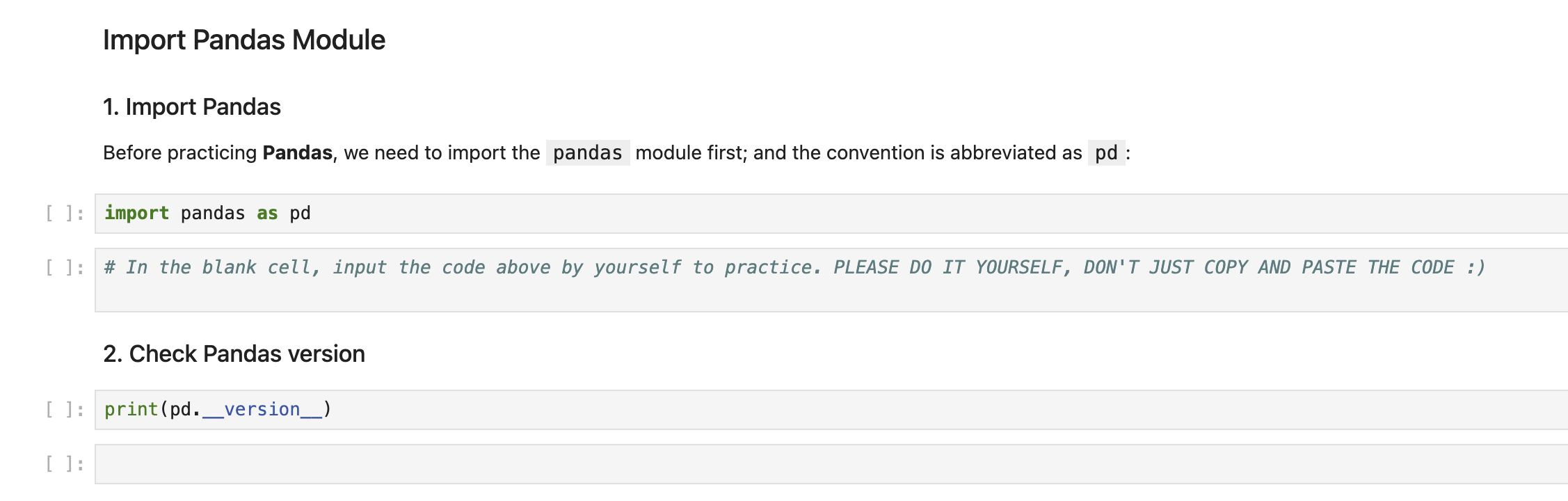 * Notebook cells (code and markdown)
* Output display
* Toolbar with common actions
2. Top Menu Bar:
* Notebook cells (code and markdown)
* Output display
* Toolbar with common actions
2. Top Menu Bar:
 * File operations
* Cell manipulation
* Kernel controls
## Working with Notebooks
### Cell Types
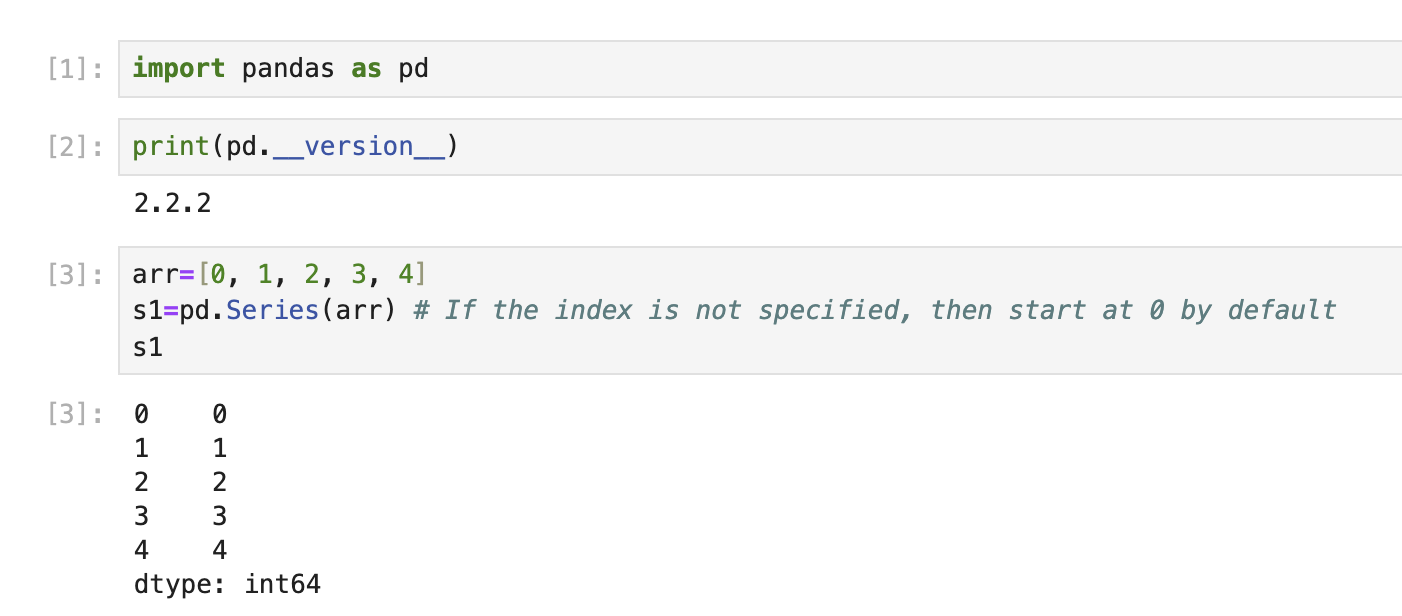
1. Code Cells:
* Write and execute Python code
* View output directly below the cell
* Use Shift+Enter to execute
* File operations
* Cell manipulation
* Kernel controls
## Working with Notebooks
### Cell Types
1. Code Cells:
* Write and execute Python code
* View output directly below the cell
* Use Shift+Enter to execute
 2. Markdown Cells:
* Document your work
* Add explanations and notes
* Support mathematical equations using LaTeX
### Common Operations
1. Create new cells:
* Click the + button in the toolbar
* Use keyboard shortcut B (below) or A (above)
2. Run cells:
* Click the play button
* Use Shift+Enter
* Use Cell menu options
3. Change cell type:
* Use the dropdown in the toolbar
* Keyboard shortcuts: Y (code), M (markdown)
## Usage Scenarios
This is a sample data analysis lab that covers 100 exercises using the Pandas.
Working with data in Jupyter:
```python theme={null}
import pandas as pd
import matplotlib.pyplot as plt
# Read data
df = pd.read_csv('data.csv')
# Create visualization
plt.figure(figsize=(10, 6))
df['column'].plot(kind='bar')
plt.title('Data Visualization')
plt.show()
```
The output appears directly below the code cell, making it easy to iterate on your analysis.
This is a sample machine learning lab that compares different classifiers
using Scikit-Learn.
Example of machine learning workflow:
```python theme={null}
from sklearn.model_selection import train_test_split
from sklearn.linear_model import LogisticRegression
# Split data
X_train, X_test, y_train, y_test = train_test_split(X, y)
# Train model
model = LogisticRegression()
model.fit(X_train, y_train)
# Evaluate
score = model.score(X_test, y_test)
print(f"Model accuracy: {score:.2f}")
```
## Frequently Asked Questions
You can install additional packages using pip in a code cell:
```python theme={null}
!pip install package-name
```
Remember that installations are temporary and will be reset when your session ends.
Important Jupyter shortcuts:
* **Cell Execution**
* Run Cell: Shift+Enter
* Run Cell and Insert Below: Alt+Enter
* **Cell Operations**
* Insert Cell Above: A
* Insert Cell Below: B
* Delete Cell: D,D (press twice)
* Copy Cell: C
* Paste Cell: V
* **Cell Types**
* Code Cell: Y
* Markdown Cell: M
* **Other**
* Save Notebook: Ctrl+S
* Command Palette: Ctrl+Shift+P
Press H to view all shortcuts.
Educational notebooks in LabEx are different from regular lab content:
1. Content is presented directly in the notebook
2. No step-by-step verification is available due to Jupyter's nature
3. You learn by:
* Reading explanations in markdown cells
* Running example code
* Modifying code to experiment
* Completing exercises within the notebook
This format allows for a more interactive and self-paced learning experience.
2. Markdown Cells:
* Document your work
* Add explanations and notes
* Support mathematical equations using LaTeX
### Common Operations
1. Create new cells:
* Click the + button in the toolbar
* Use keyboard shortcut B (below) or A (above)
2. Run cells:
* Click the play button
* Use Shift+Enter
* Use Cell menu options
3. Change cell type:
* Use the dropdown in the toolbar
* Keyboard shortcuts: Y (code), M (markdown)
## Usage Scenarios
This is a sample data analysis lab that covers 100 exercises using the Pandas.
Working with data in Jupyter:
```python theme={null}
import pandas as pd
import matplotlib.pyplot as plt
# Read data
df = pd.read_csv('data.csv')
# Create visualization
plt.figure(figsize=(10, 6))
df['column'].plot(kind='bar')
plt.title('Data Visualization')
plt.show()
```
The output appears directly below the code cell, making it easy to iterate on your analysis.
This is a sample machine learning lab that compares different classifiers
using Scikit-Learn.
Example of machine learning workflow:
```python theme={null}
from sklearn.model_selection import train_test_split
from sklearn.linear_model import LogisticRegression
# Split data
X_train, X_test, y_train, y_test = train_test_split(X, y)
# Train model
model = LogisticRegression()
model.fit(X_train, y_train)
# Evaluate
score = model.score(X_test, y_test)
print(f"Model accuracy: {score:.2f}")
```
## Frequently Asked Questions
You can install additional packages using pip in a code cell:
```python theme={null}
!pip install package-name
```
Remember that installations are temporary and will be reset when your session ends.
Important Jupyter shortcuts:
* **Cell Execution**
* Run Cell: Shift+Enter
* Run Cell and Insert Below: Alt+Enter
* **Cell Operations**
* Insert Cell Above: A
* Insert Cell Below: B
* Delete Cell: D,D (press twice)
* Copy Cell: C
* Paste Cell: V
* **Cell Types**
* Code Cell: Y
* Markdown Cell: M
* **Other**
* Save Notebook: Ctrl+S
* Command Palette: Ctrl+Shift+P
Press H to view all shortcuts.
Educational notebooks in LabEx are different from regular lab content:
1. Content is presented directly in the notebook
2. No step-by-step verification is available due to Jupyter's nature
3. You learn by:
* Reading explanations in markdown cells
* Running example code
* Modifying code to experiment
* Completing exercises within the notebook
This format allows for a more interactive and self-paced learning experience.