> ## Documentation Index
> Fetch the complete documentation index at: https://support.labex.io/llms.txt
> Use this file to discover all available pages before exploring further.
# Virtual machine and terminal in the LabEx app
> Start and stop the lab VM, use terminals and forwarded ports on iPhone and Mac, and know when pricing or limits apply.
Many labs need a **Linux environment**. The app attaches a **virtual machine (VM)** to the current lab so you can run commands in a real terminal.
The VM is a **side tool**: reading steps and chatting with Labby stays in the main learning layout. The terminal is there when the lab expects hands-on work.
For background on LabEx VMs in the browser, see [Virtual Machine](/en/using-labex/virtual-machine). This page stays focused on **app controls**.
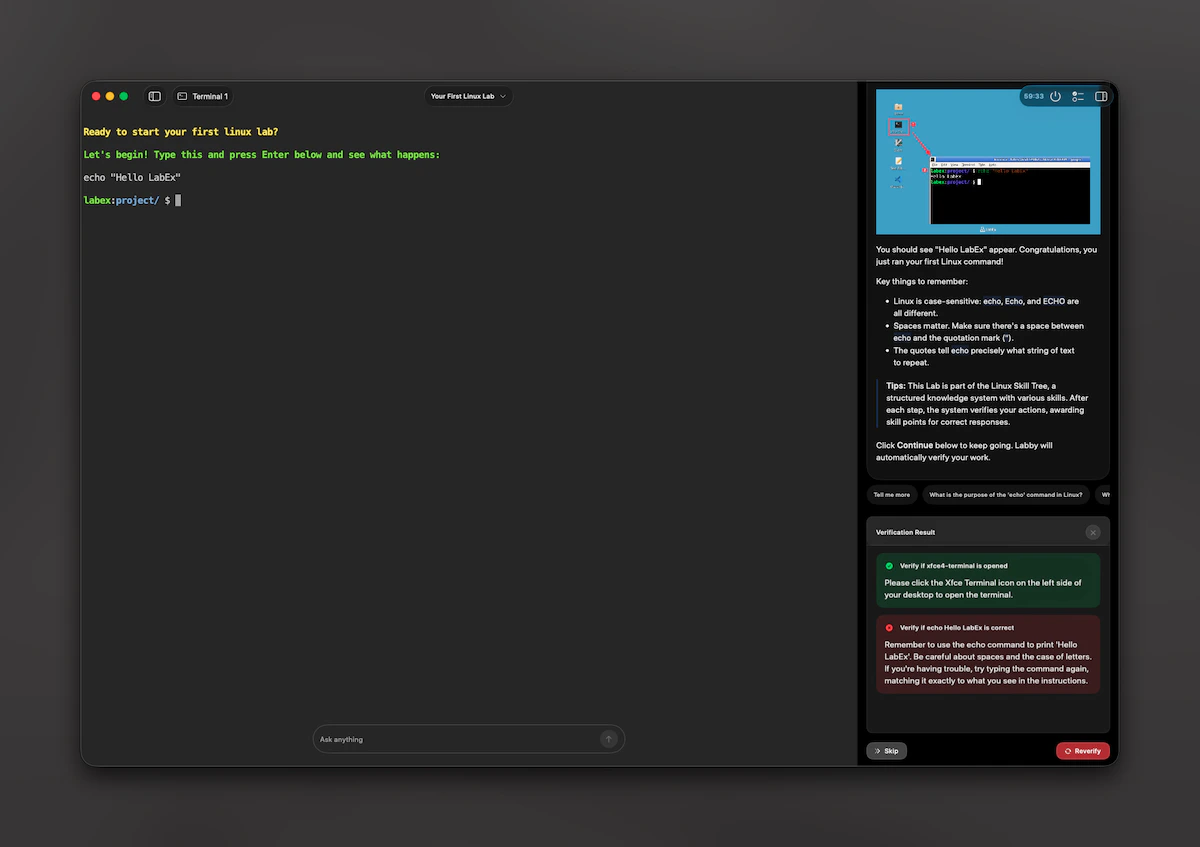
The **iPhone** sections below use iPhone screenshots. The **Mac** section includes a **macOS** screenshot of the learning workspace with the embedded terminal and assistant.
## When the VM starts
* Use the **VM** entry from the learning UI when you need the terminal.
* On the **first step**, the **primary Continue button** may also start the VM **if** the lab still needs an environment and you do not already have a usable session for this lab.
If the lab **does not allow** starting a VM on your current plan, the app opens **pricing** instead of starting hardware.
## iPhone: VM sheet
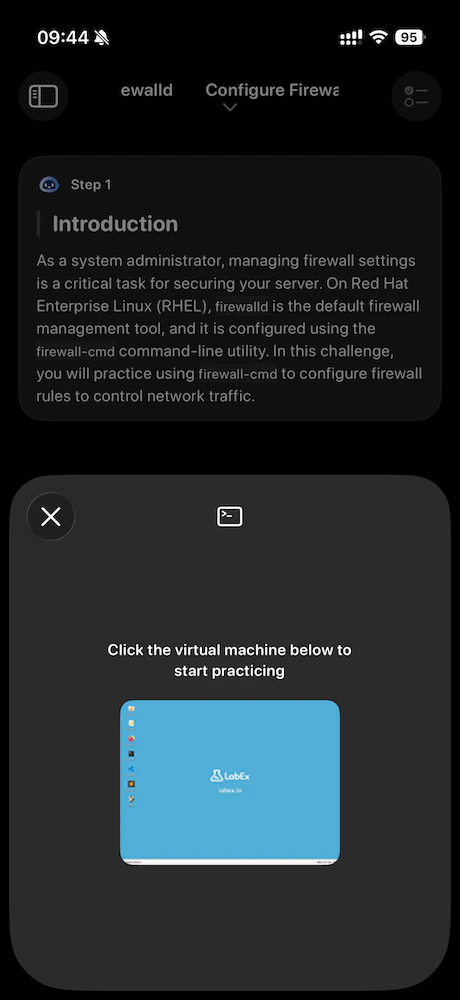
On **iPhone**, the VM opens as a **sheet** you drag between medium and large heights.
* **Idle**\
You see a short explanation and **Start VM**.
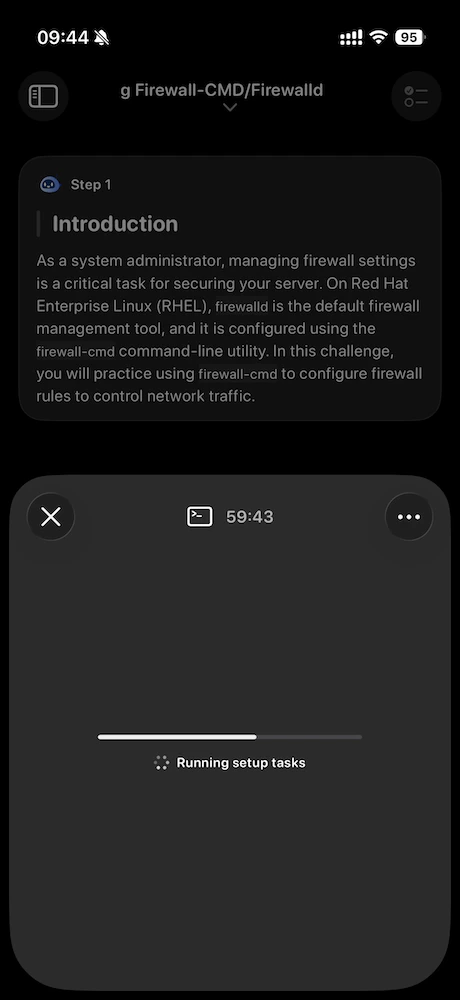
 * **Running**\
You get quick actions (for example **paste** and **clear terminal**) and a settings area for **interfaces**, **stop**, **back to terminal**, and **exposed ports**.
While the environment is preparing, the sheet shows **setup progress** and remaining session time.
* **Running**\
You get quick actions (for example **paste** and **clear terminal**) and a settings area for **interfaces**, **stop**, **back to terminal**, and **exposed ports**.
While the environment is preparing, the sheet shows **setup progress** and remaining session time.
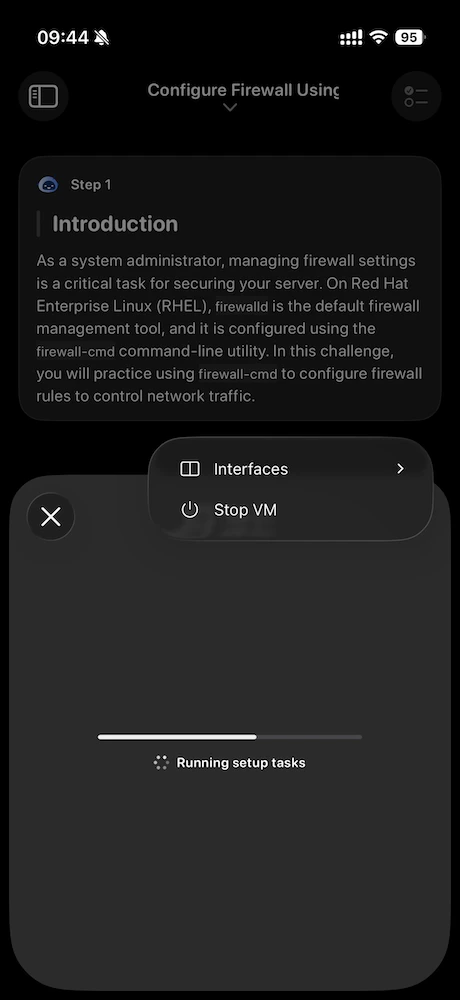
 The **more** menu reaches **Interfaces** (switch tty sessions) and **Stop VM** while the machine is running.
 **Clear terminal** runs the `clear` command in the session; it does not erase your device clipboard.
## Mac: workspace and sidebar
On **Mac**, the terminal lives in the **learning workspace**, not as the only full-screen sheet.
When the VM is running, **Learning** in the sidebar lists **terminals** and **exposed ports** in one flat list. Use the **+** menu next to **Learning** to **add a terminal** or **add an exposed port** (you type the port number in a small form).
Select a row to switch what the embedded browser shows. **Return to terminal** jumps back to your tty session.
**Clear terminal** runs the `clear` command in the session; it does not erase your device clipboard.
## Mac: workspace and sidebar
On **Mac**, the terminal lives in the **learning workspace**, not as the only full-screen sheet.
When the VM is running, **Learning** in the sidebar lists **terminals** and **exposed ports** in one flat list. Use the **+** menu next to **Learning** to **add a terminal** or **add an exposed port** (you type the port number in a small form).
Select a row to switch what the embedded browser shows. **Return to terminal** jumps back to your tty session.
 ## Multiple terminals and ports
Labs can use more than one terminal. The app assigns **reserved high ports** for web terminals and can **forward extra ports** you choose.
* You can **add** another terminal until you reach the limit.
* You can **close** a terminal you no longer need, except the **last** one, which must stay open.
Only **one terminal web view** is shown at a time; switching rows swaps the active URL.
## Session time and extend (Pro)
VMs expire after a scheduled time. The app shows **remaining time** and may prompt you when time is low.
* **LabEx Pro** users may see an option to **extend** the session when the app enters a short final window before expiry.
* **Free** users see guidance that points to **pricing** instead.
After you extend or the session ends, trust the **on-screen timer** and any alerts the app shows.
## Stop and conflicts
**Stop VM** ends the remote session and clears local terminal state.
If a VM is already running for **another lab**, starting a new one can **conflict**. The app explains the situation and lets you **keep the old lab** or **replace** it with the new one. If you replace, the old VM is removed first.
If you hit a **temporary VM quota** limit, the app opens **pricing** so you can review Pro options.
## Paste and shortcuts
Toolbar actions can **paste** into the terminal and send common keys. Some paste helpers treat **paths** differently (for example, they may send Enter so a command runs). Plain paste from the toolbar does **not** auto-send Enter.
## If something looks wrong
* **Switching labs** clears old terminal URLs so you never stay attached to the wrong lab by mistake.
* **Stopping**, **errors**, or **expiry** reset the VM UI to an idle state until you start again.
## Multiple terminals and ports
Labs can use more than one terminal. The app assigns **reserved high ports** for web terminals and can **forward extra ports** you choose.
* You can **add** another terminal until you reach the limit.
* You can **close** a terminal you no longer need, except the **last** one, which must stay open.
Only **one terminal web view** is shown at a time; switching rows swaps the active URL.
## Session time and extend (Pro)
VMs expire after a scheduled time. The app shows **remaining time** and may prompt you when time is low.
* **LabEx Pro** users may see an option to **extend** the session when the app enters a short final window before expiry.
* **Free** users see guidance that points to **pricing** instead.
After you extend or the session ends, trust the **on-screen timer** and any alerts the app shows.
## Stop and conflicts
**Stop VM** ends the remote session and clears local terminal state.
If a VM is already running for **another lab**, starting a new one can **conflict**. The app explains the situation and lets you **keep the old lab** or **replace** it with the new one. If you replace, the old VM is removed first.
If you hit a **temporary VM quota** limit, the app opens **pricing** so you can review Pro options.
## Paste and shortcuts
Toolbar actions can **paste** into the terminal and send common keys. Some paste helpers treat **paths** differently (for example, they may send Enter so a command runs). Plain paste from the toolbar does **not** auto-send Enter.
## If something looks wrong
* **Switching labs** clears old terminal URLs so you never stay attached to the wrong lab by mistake.
* **Stopping**, **errors**, or **expiry** reset the VM UI to an idle state until you start again.