> ## Documentation Index
> Fetch the complete documentation index at: https://support.labex.io/llms.txt
> Use this file to discover all available pages before exploring further.
# LabEx App overview and get started
> Install LabEx, sign in from the learning home, and understand what happens after you open the app.
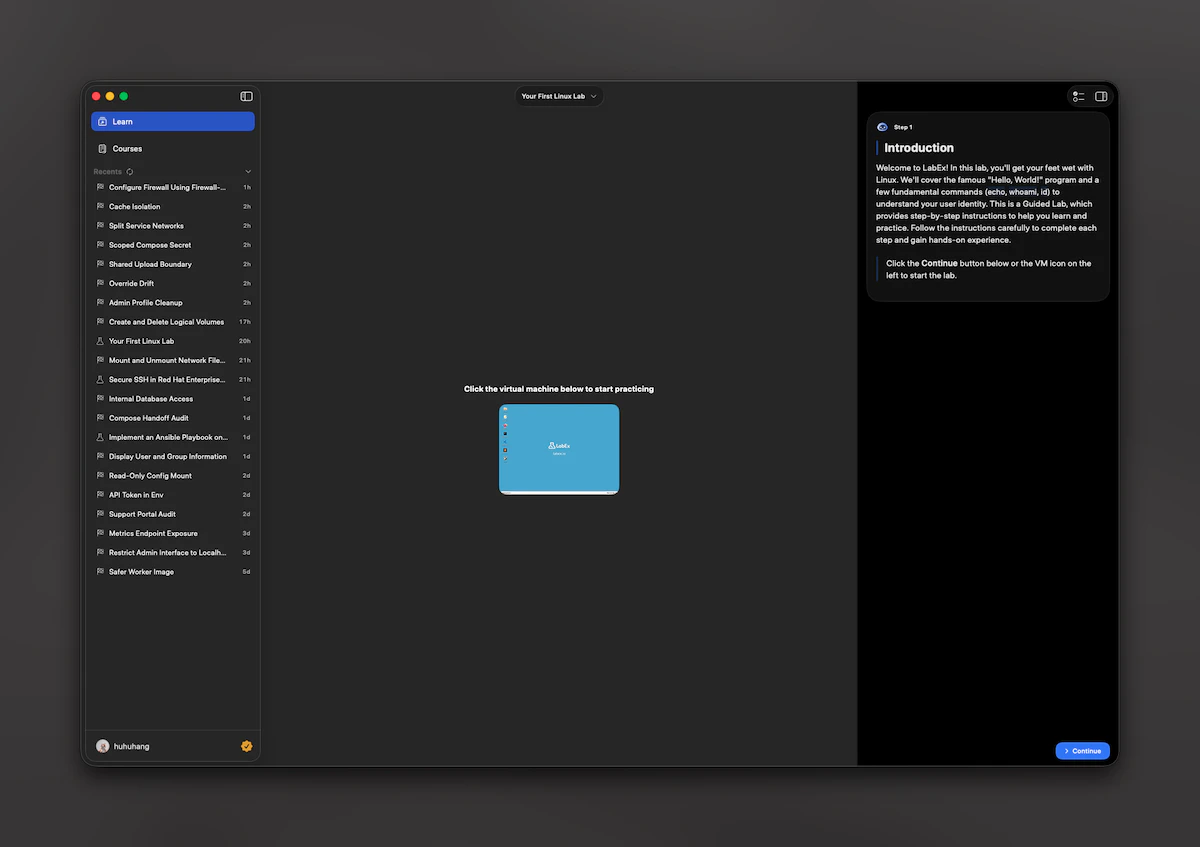
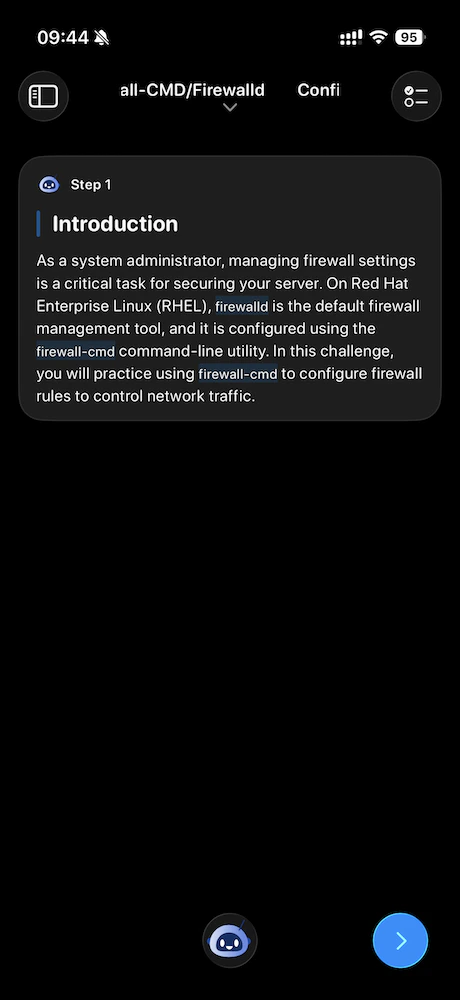
The LabEx app brings hands-on labs to your **iPhone** and **Mac**. You learn in a chat-first flow: step instructions, Labby AI, checks, and optional virtual machines when a lab needs a terminal.

 This guide focuses on the **main path** a new user follows. For how LabEx works on the web, see [Welcome](/en/using-labex/welcome) and [Quick Start](/en/using-labex/quick-start).
 ## Install and open
Install **LabEx** from the App Store on your iPhone or Mac. The store page shows the **minimum system version** required on your device.
When you open the app, you start from the **learning-first sign-in experience**:
* On **iPhone**, you see the **learning home** welcome, then the same sign-in choices described below.
* On **Mac**, if you are not signed in yet, you see a **login** screen first with the same choices; after sign-in, the **Learning / Courses** shell appears.
The product is built around **learning first**, not the full course catalog as the very first screen.
## Sign in (learning home)
You need a LabEx account to use the app. **Sign-in starts from the learning-first entry** (welcome on the learning home for iPhone, or the Mac login screen), not from the course list or profile alone.
After a short welcome sequence, you choose how to sign in:
1. **Sign in with Apple**
2. **Sign in with Google**
3. **Email and password**
Email sign-in uses a single screen for your credentials. You can go back to pick another method.
If a link opens the app for Google sign-in, the app handles that callback
first, then continues with your lab or link target.
## After you sign in: where the app takes you
Once you are signed in, the app picks a **starting lab** in this order:
1. **Running VM**\
If you already have an active virtual machine session for a lab, the app opens that lab so you can continue.
2. **Continue learning**\
If you have an in-progress course on LabEx with a current lab, the app opens that lab.
3. **Getting started lab**\
If neither applies, the app opens a default **Quick Start with Linux** entry lab so you can begin immediately.
If the app cannot refresh this entry (for example, a network error), you will see an **error and a retry** option. It does not silently switch you to a random lab.
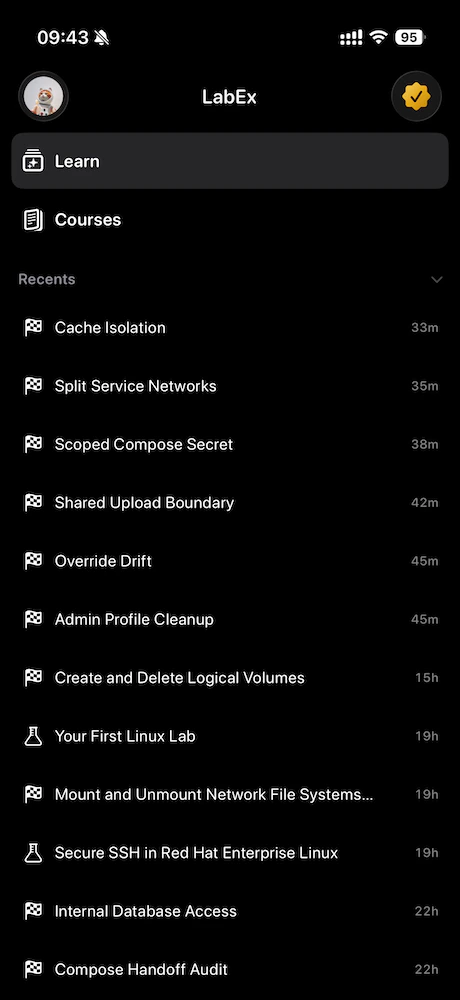
On **iPhone**, once you are in the signed-in shell, the sidebar highlights **Learn** and **Courses** and lists **Recents** below (Mac follows the same ideas with a desktop layout).
## Install and open
Install **LabEx** from the App Store on your iPhone or Mac. The store page shows the **minimum system version** required on your device.
When you open the app, you start from the **learning-first sign-in experience**:
* On **iPhone**, you see the **learning home** welcome, then the same sign-in choices described below.
* On **Mac**, if you are not signed in yet, you see a **login** screen first with the same choices; after sign-in, the **Learning / Courses** shell appears.
The product is built around **learning first**, not the full course catalog as the very first screen.
## Sign in (learning home)
You need a LabEx account to use the app. **Sign-in starts from the learning-first entry** (welcome on the learning home for iPhone, or the Mac login screen), not from the course list or profile alone.
After a short welcome sequence, you choose how to sign in:
1. **Sign in with Apple**
2. **Sign in with Google**
3. **Email and password**
Email sign-in uses a single screen for your credentials. You can go back to pick another method.
If a link opens the app for Google sign-in, the app handles that callback
first, then continues with your lab or link target.
## After you sign in: where the app takes you
Once you are signed in, the app picks a **starting lab** in this order:
1. **Running VM**\
If you already have an active virtual machine session for a lab, the app opens that lab so you can continue.
2. **Continue learning**\
If you have an in-progress course on LabEx with a current lab, the app opens that lab.
3. **Getting started lab**\
If neither applies, the app opens a default **Quick Start with Linux** entry lab so you can begin immediately.
If the app cannot refresh this entry (for example, a network error), you will see an **error and a retry** option. It does not silently switch you to a random lab.
On **iPhone**, once you are in the signed-in shell, the sidebar highlights **Learn** and **Courses** and lists **Recents** below (Mac follows the same ideas with a desktop layout).
 ## Links that open the app
LabEx content links can open in the app when configured on your device:
* **Course links** open the **course lab list** first. You choose a lab, then enter the learning screen.
* **Lab links** open the **learning screen** for that lab directly.
* **Pricing links** inside step text open **in-app pricing** on iPhone (sheet) or Mac (pricing window).
Links on `labex.io` (and `www.labex.io`), optional language prefixes in the path, and `labex://` style links are supported where applicable.
## Live Activity (iPhone only)
On **iPhone**, when you have a qualifying **running** VM, the app can show a **Live Activity** with the lab name and session time. After the VM stops, the activity may show a **stopped** state until it is replaced or cleared (for example, after sign-out or a new running session). This feature is not available on Mac.
## Mac at a glance
On **Mac**, the main window uses a **sidebar** for **Learning** and **Courses**, similar in spirit to iPhone but laid out for a desktop. **Account** and **pricing** open in separate windows instead of full-screen sheets.
## Links that open the app
LabEx content links can open in the app when configured on your device:
* **Course links** open the **course lab list** first. You choose a lab, then enter the learning screen.
* **Lab links** open the **learning screen** for that lab directly.
* **Pricing links** inside step text open **in-app pricing** on iPhone (sheet) or Mac (pricing window).
Links on `labex.io` (and `www.labex.io`), optional language prefixes in the path, and `labex://` style links are supported where applicable.
## Live Activity (iPhone only)
On **iPhone**, when you have a qualifying **running** VM, the app can show a **Live Activity** with the lab name and session time. After the VM stops, the activity may show a **stopped** state until it is replaced or cleared (for example, after sign-out or a new running session). This feature is not available on Mac.
## Mac at a glance
On **Mac**, the main window uses a **sidebar** for **Learning** and **Courses**, similar in spirit to iPhone but laid out for a desktop. **Account** and **pricing** open in separate windows instead of full-screen sheets.