> ## Documentation Index
> Fetch the complete documentation index at: https://support.labex.io/llms.txt
> Use this file to discover all available pages before exploring further.
# Learn, courses, and labs in the LabEx app
> Use the sidebar, learning screen, course catalog, and recents to move through labs without getting lost.
This page walks through **navigation**, the **learning screen**, and **courses** the way you use them day to day.
 ## Sidebar: Learning and Courses
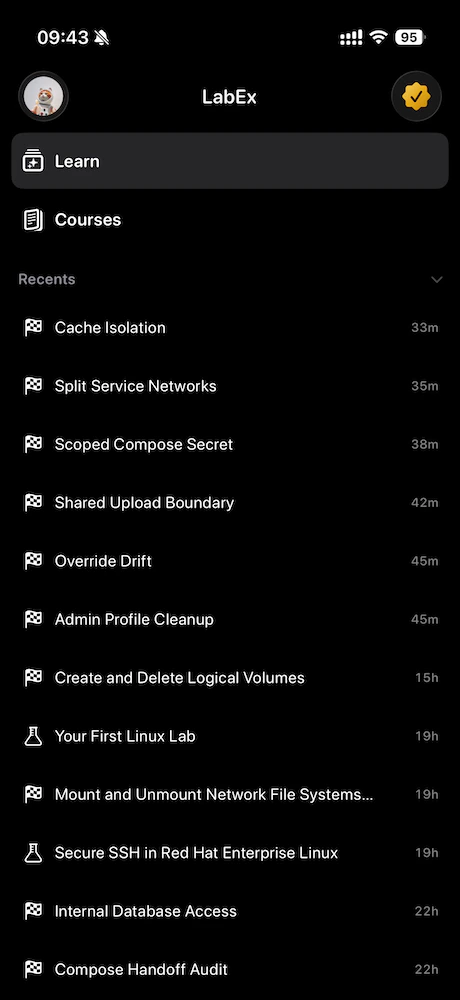
When you are signed in, the app uses a **sidebar** (or split view on iPhone) with two main areas:
* **Learning**\
Your current lab experience: steps, chat, checks, and entry to the VM when needed.
* **Courses**\
The full **course catalog**: paths, Continue Learning, and pagination. Pick a course, open its **lab list**, then tap a lab to start learning.
### iPhone: profile and LabEx Pro
On **iPhone**, the sidebar toolbar includes:
* **Profile** (avatar)\
Opens your **profile** in a sheet. From here you can review your account and sign out.
* **LabEx Pro / Upgrade**\
Opens **pricing** in a sheet.
The **Learning** detail screen itself does not repeat the profile button in the top bar, so new users should remember: **account and Pro are in the sidebar** when you are in the main shell.
If you open the **course list from the learning screen** as a sheet, that sheet may show **profile** in its own top bar for quick access while you browse.
### Mac: account and pricing
On **Mac**, use the **account row** at the bottom of the sidebar for your profile. **Upgrade / Pro** opens the **pricing** window. Same account as on the web and iPhone.
## Sidebar: Learning and Courses
When you are signed in, the app uses a **sidebar** (or split view on iPhone) with two main areas:
* **Learning**\
Your current lab experience: steps, chat, checks, and entry to the VM when needed.
* **Courses**\
The full **course catalog**: paths, Continue Learning, and pagination. Pick a course, open its **lab list**, then tap a lab to start learning.
### iPhone: profile and LabEx Pro
On **iPhone**, the sidebar toolbar includes:
* **Profile** (avatar)\
Opens your **profile** in a sheet. From here you can review your account and sign out.
* **LabEx Pro / Upgrade**\
Opens **pricing** in a sheet.
The **Learning** detail screen itself does not repeat the profile button in the top bar, so new users should remember: **account and Pro are in the sidebar** when you are in the main shell.
If you open the **course list from the learning screen** as a sheet, that sheet may show **profile** in its own top bar for quick access while you browse.
### Mac: account and pricing
On **Mac**, use the **account row** at the bottom of the sidebar for your profile. **Upgrade / Pro** opens the **pricing** window. Same account as on the web and iPhone.
 ## Recent labs
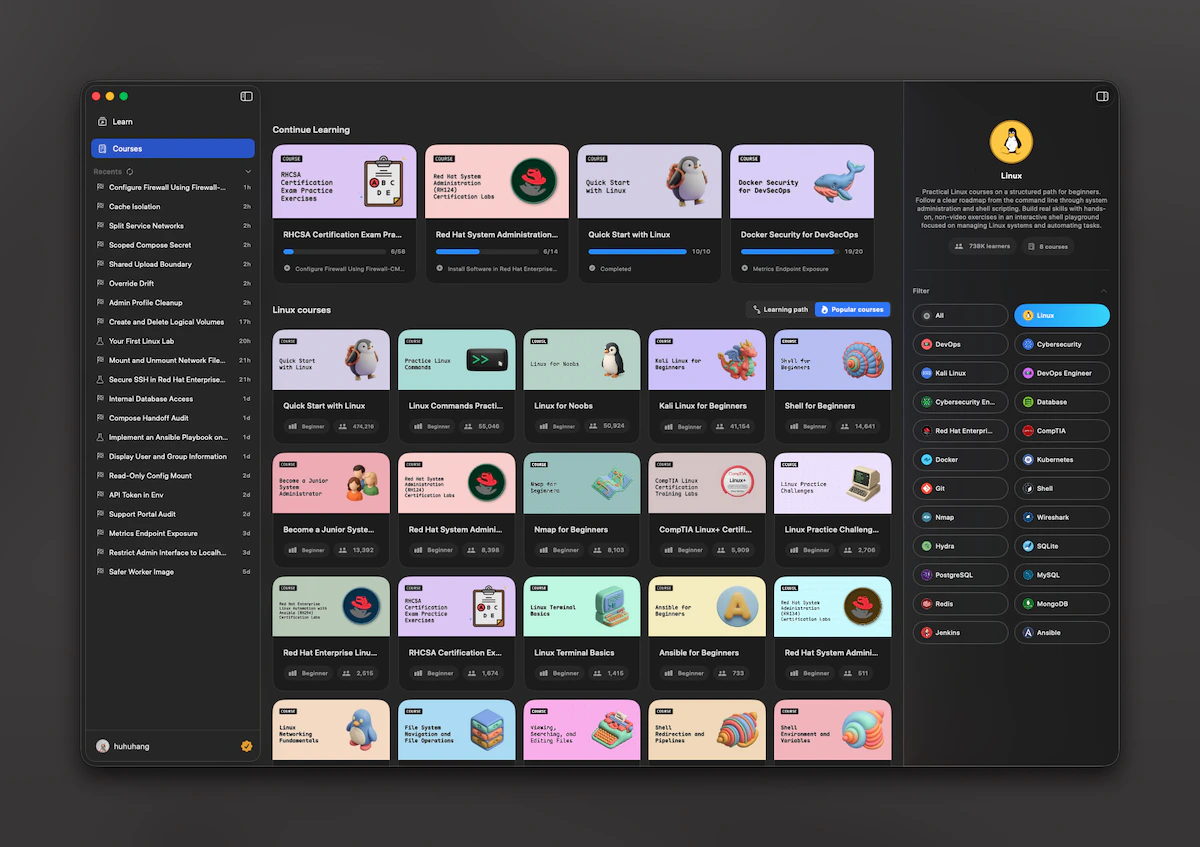
Under the main items, **Recent** lists labs you opened recently (from your LabEx timeline). Tap an item to jump back to that lab in **Learning**. You can **refresh** the list and **collapse** the section to save space.
## Learning screen: the main workflow
The learning screen is the **center of the app**. Typical flow:
1. Read the **current step** in the timeline.
2. Use **Labby** in the composer: type a message or use shortcuts the lab provides.
3. Use the **primary button** at the bottom for the current action, such as **Continue**, **Complete**, **Re-check**, or **Skip**, depending on the step.
### Suggested questions
On **middle steps**, the app may show **suggested questions**. Tap one to send it and keep moving. The **first** and **last** step do not show these suggestions.
### Solution, check, and feedback
* **Solution**\
When available, opening the solution adds an **assistant-style message** into the same timeline. It stays there unless you remove it after a failure or explicit action.
* **Check**\
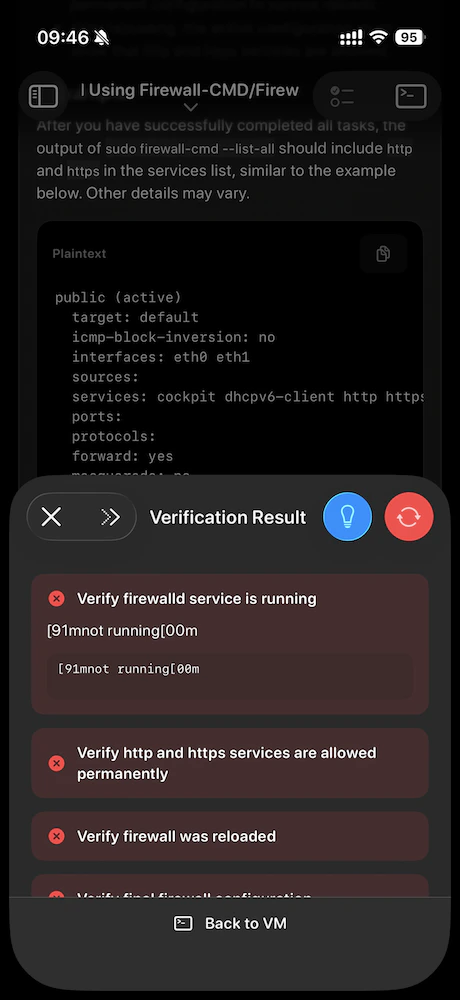
Validation steps open a **result panel** so you see pass or fail clearly. If validation fails, the primary button can offer **re-check**.
* **Feedback**\
On the **last step**, after you complete the flow, you may submit **feedback** in a sheet. After you send it, the app may move you to a **next lab**, a **next course**, or close the flow if nothing follows.
Some actions require **LabEx Pro**. If the server returns a permission error for a solution, the app can open **pricing** so you can upgrade.
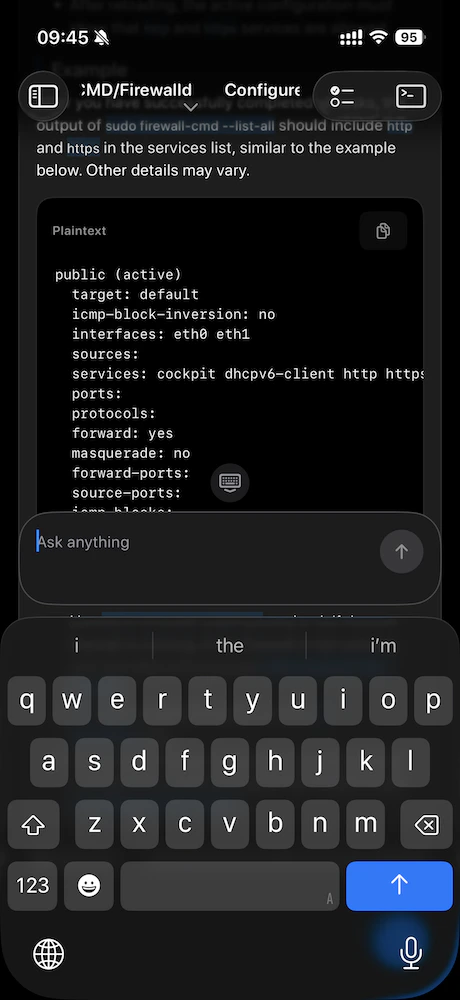
The composer at the bottom is where you talk to **Labby** (placeholder text may read like **Ask anything** in your language). The checklist and title row are how you jump between **steps** and open the **course outline**.
## Recent labs
Under the main items, **Recent** lists labs you opened recently (from your LabEx timeline). Tap an item to jump back to that lab in **Learning**. You can **refresh** the list and **collapse** the section to save space.
## Learning screen: the main workflow
The learning screen is the **center of the app**. Typical flow:
1. Read the **current step** in the timeline.
2. Use **Labby** in the composer: type a message or use shortcuts the lab provides.
3. Use the **primary button** at the bottom for the current action, such as **Continue**, **Complete**, **Re-check**, or **Skip**, depending on the step.
### Suggested questions
On **middle steps**, the app may show **suggested questions**. Tap one to send it and keep moving. The **first** and **last** step do not show these suggestions.
### Solution, check, and feedback
* **Solution**\
When available, opening the solution adds an **assistant-style message** into the same timeline. It stays there unless you remove it after a failure or explicit action.
* **Check**\
Validation steps open a **result panel** so you see pass or fail clearly. If validation fails, the primary button can offer **re-check**.
* **Feedback**\
On the **last step**, after you complete the flow, you may submit **feedback** in a sheet. After you send it, the app may move you to a **next lab**, a **next course**, or close the flow if nothing follows.
Some actions require **LabEx Pro**. If the server returns a permission error for a solution, the app can open **pricing** so you can upgrade.
The composer at the bottom is where you talk to **Labby** (placeholder text may read like **Ask anything** in your language). The checklist and title row are how you jump between **steps** and open the **course outline**.
 When a step runs an automated **check**, you get a clear pass or fail breakdown and shortcuts such as **Back to VM** so you can fix issues in the terminal, then re-run verification.
 ## Course outline and switching labs
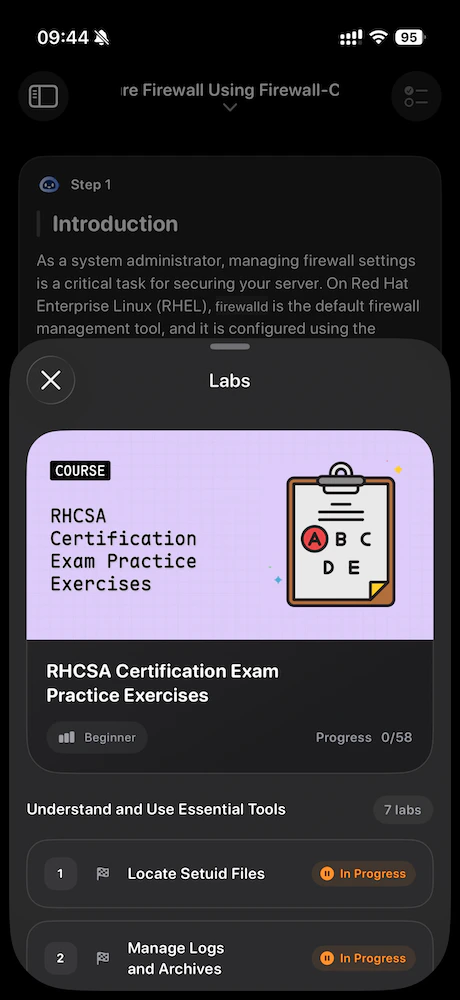
Use the **title** in the learning top bar to open the **Labs** sheet: course cover, grouped labs, progress, sometimes a **next course** link, and status such as **In progress**.
* Switching to **another lab in the same course** updates the learning screen **in place** (no extra navigation stack).
## Course outline and switching labs
Use the **title** in the learning top bar to open the **Labs** sheet: course cover, grouped labs, progress, sometimes a **next course** link, and status such as **In progress**.
* Switching to **another lab in the same course** updates the learning screen **in place** (no extra navigation stack).
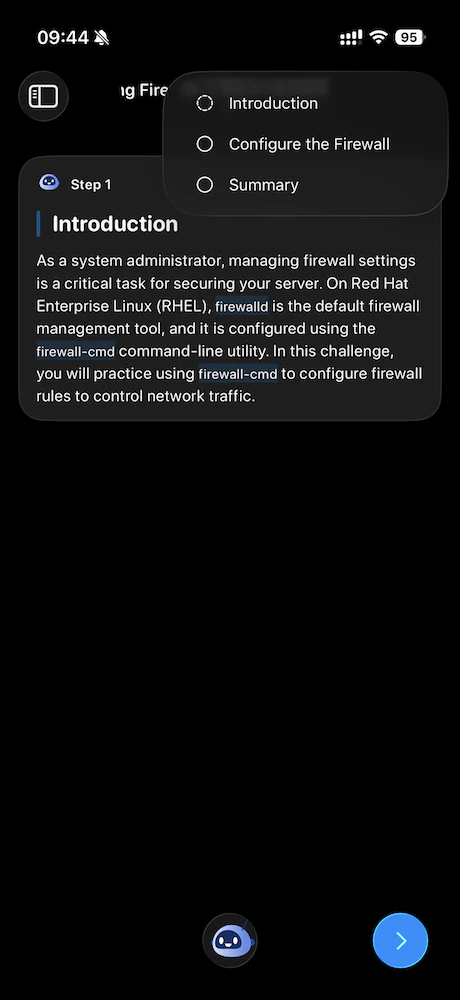
 Use the **checklist** control in the top bar for the **step outline** of the lab you are in.
 ## Course catalog behavior
In **Courses**:
* **Continue Learning** appears at the top when you have eligible in-progress courses.
* **Paths** let you filter content. The app only shows paths that LabEx tags for **iOS** (Mac uses the same rule so both apps match).
* When a path is selected, you can switch between **path courses** and **popular courses** filtered by that path (same idea on iPhone and Mac).
Choosing a course opens its **lab list**. Choose a **lab** to enter **Learning**.
## Running VM hint on Learning
If you have a **running VM** for a different lab than the one on screen, the sidebar **Learning** row can show a **back to running lab** hint. Use it when you want to return to the session that still has a live environment.
## Course catalog behavior
In **Courses**:
* **Continue Learning** appears at the top when you have eligible in-progress courses.
* **Paths** let you filter content. The app only shows paths that LabEx tags for **iOS** (Mac uses the same rule so both apps match).
* When a path is selected, you can switch between **path courses** and **popular courses** filtered by that path (same idea on iPhone and Mac).
Choosing a course opens its **lab list**. Choose a **lab** to enter **Learning**.
## Running VM hint on Learning
If you have a **running VM** for a different lab than the one on screen, the sidebar **Learning** row can show a **back to running lab** hint. Use it when you want to return to the session that still has a live environment.